Help

Categories
Build a website on blacksea
In this article:
- Set up your profile
- Create pages and sections
- Product sections
- Sort your products
- Let customers filter your products
- Add a featured product
- Posts sections
- Subscribe sections
- Text sections
- Add sections to product pages
- Product sections
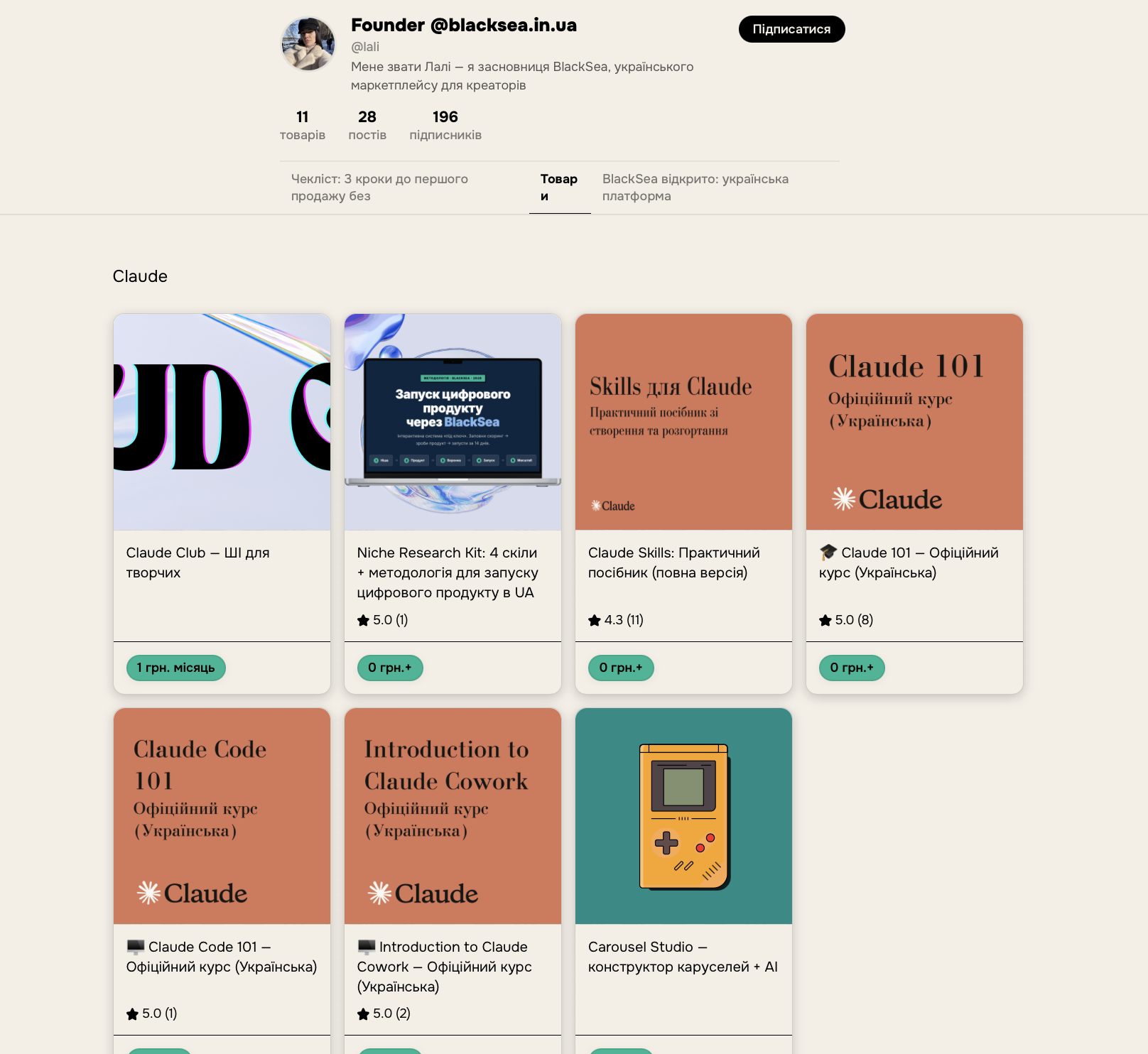
Your profile lets you have your own website on BlackSea. You can use it to introduce yourself with a profile photo and bio, grow your audience by collecting email addresses, and showcase your products on customizable pages and sections.
Your profile lives at [username].blacksea.in.ua, where [username] is replaced with your unique username. You can also get there by clicking your name and then the "Profile" button in the BlackSea navigation.
Set up your profile
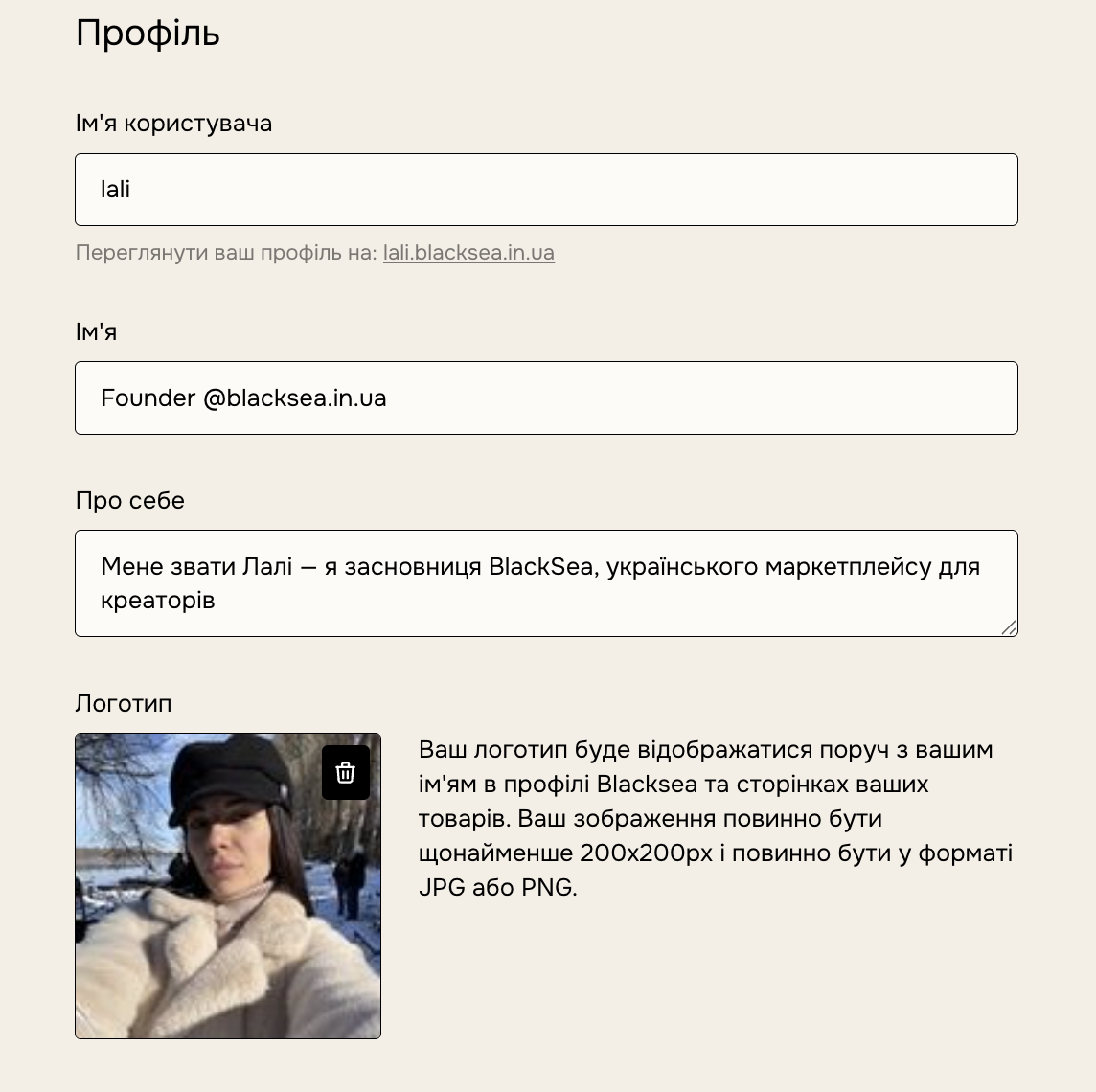
Go to your profile settings to update the public information your customers see, including a short bio (we've found that one or two sentences work best, rather than an overly long description of your entire career).
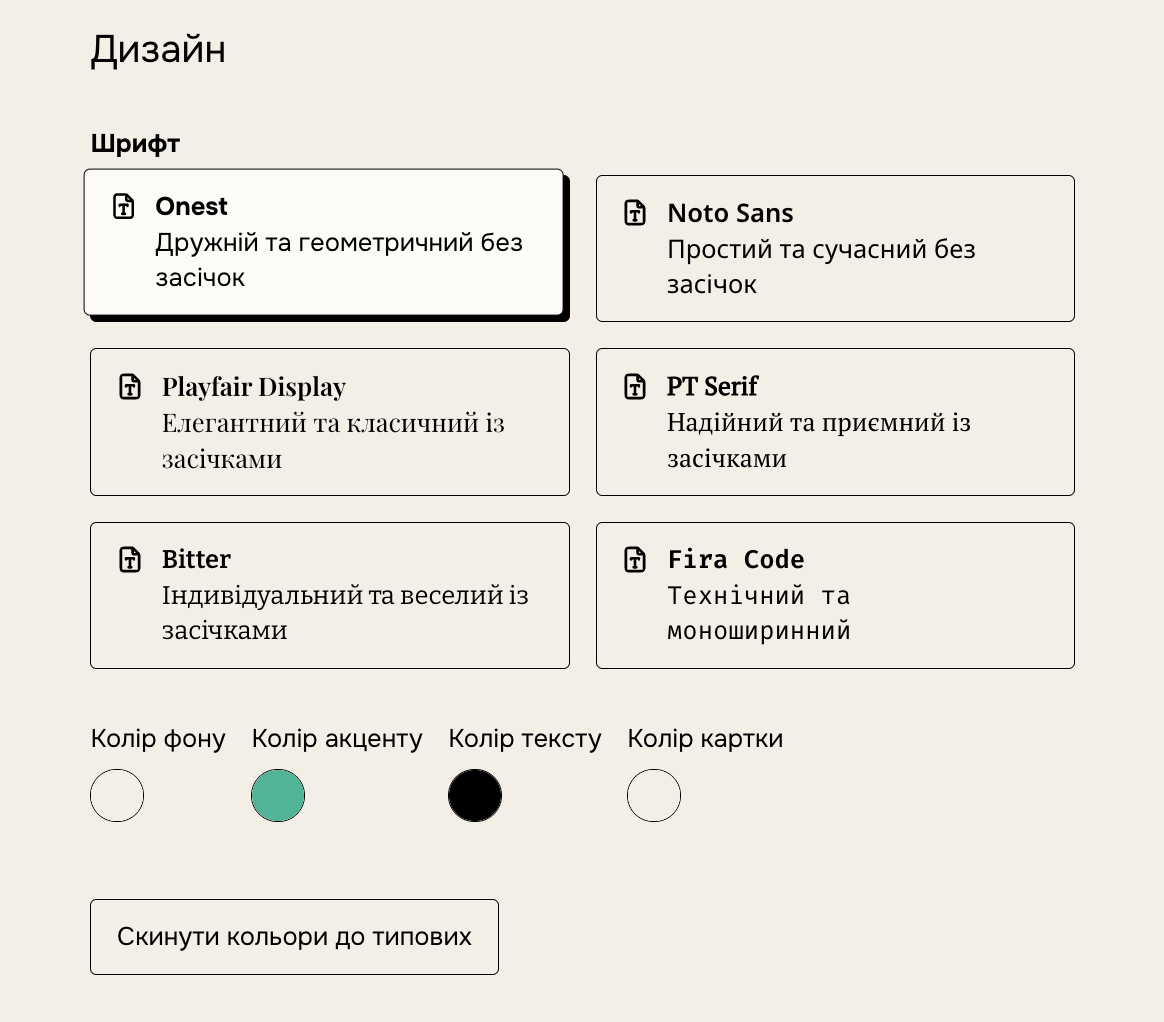
Customize fonts and colors
Choose different font styles, accents, and background colors in your profile settings. Custom fonts and colors apply to your profile, products, posts, and emails — but not to your product content.
Create pages and sections
You can have multiple pages on your profile, each with several sections, which helps you organize your products and posts effectively.
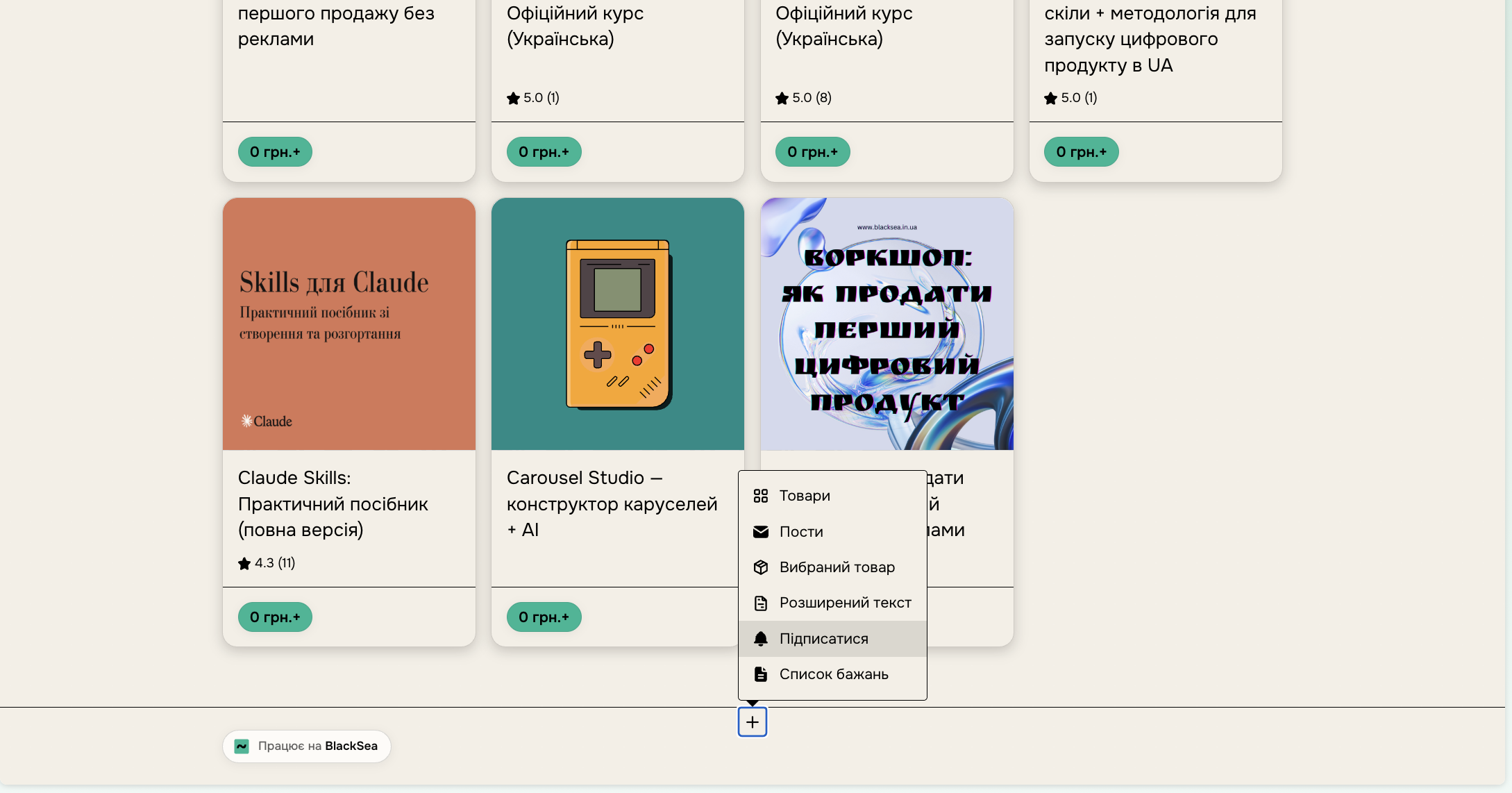
Click the three-dot menu and select "New page" to get started. On a page, click the "+" icon at the bottom to create a new section that will appear on your profile.
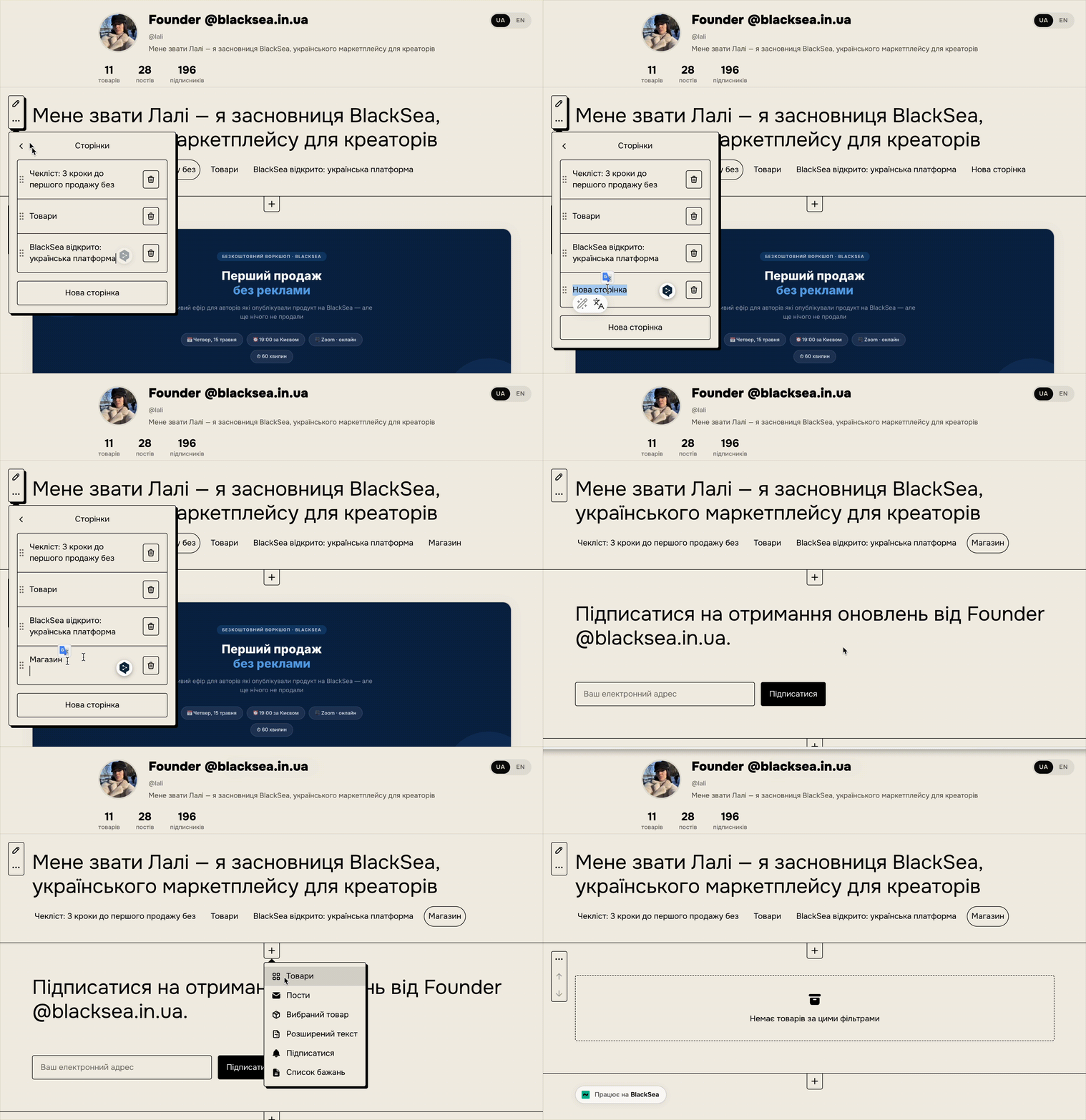
You can also rename and reorder your pages and sections from the three-dot menu.
Product sections
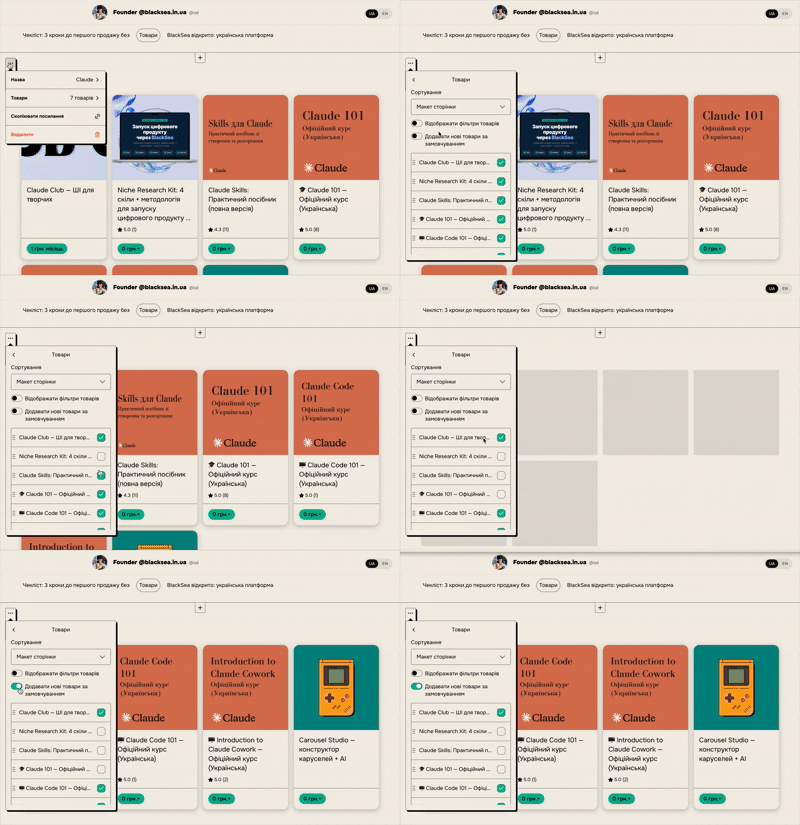
In a product section, click the three-dot menu on the left to set a name and choose which products it should contain. You can choose whether to show the section title, and whether to automatically add new products to the section (enabled by default for new sections).
.gif)
When you're done, just click outside the field to save your changes!
Sort your products
You can set the order of your products manually, or set a default sort by price, rating, or newest.
To set a custom order, click "Products", choose "Custom" as the default sort order, and drag products by holding the 6-dot handle on the left.
Let customers filter your products
Product filters help customers organize and easily explore your products as they browse. Your products can be filtered by rating and by the file types they contain. If you'd rather customers not see the filters, you can turn them off with the "Show product filters" toggle.
Note: filters are disabled while editing so you can see all selected products. You can check them after logging out, or in another browser / incognito mode.
Add a featured product
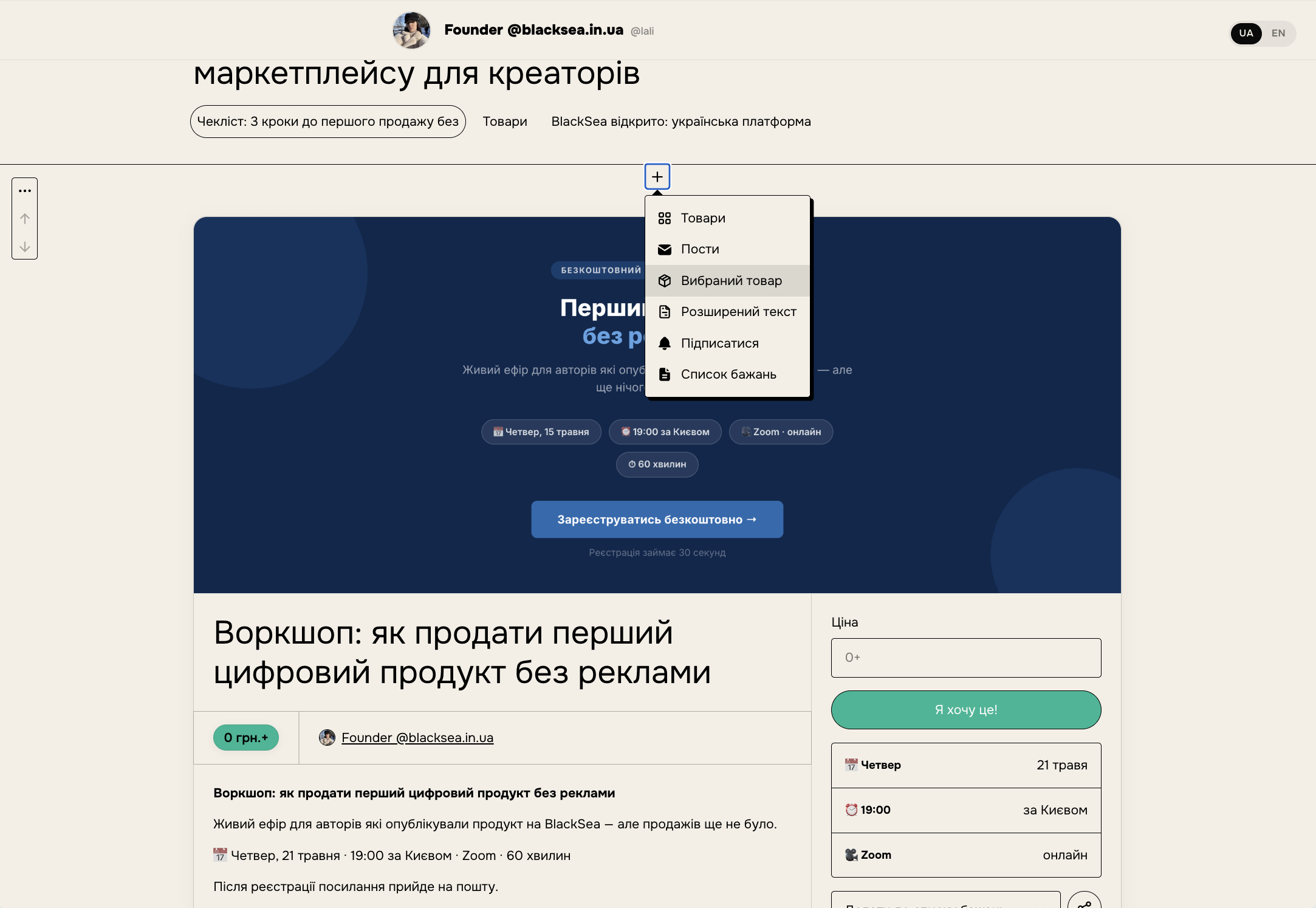
Have a bestseller you'd like to highlight, or want to draw more attention to a new launch? You can embed a single product on your profile with the "Featured product" block.
Posts sections
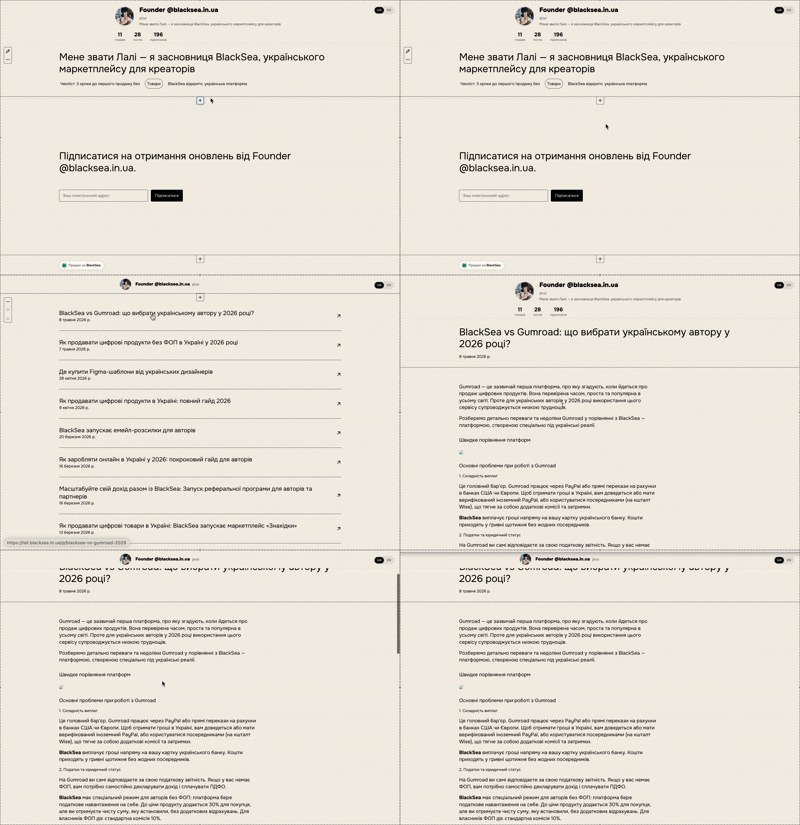
Adding a "Posts" section will display all the relevant emails published to your profile.
Subscribe sections
Add a "Subscribe" block to collect email addresses for your newsletter. You can also customize the section heading and button text!
Text sections
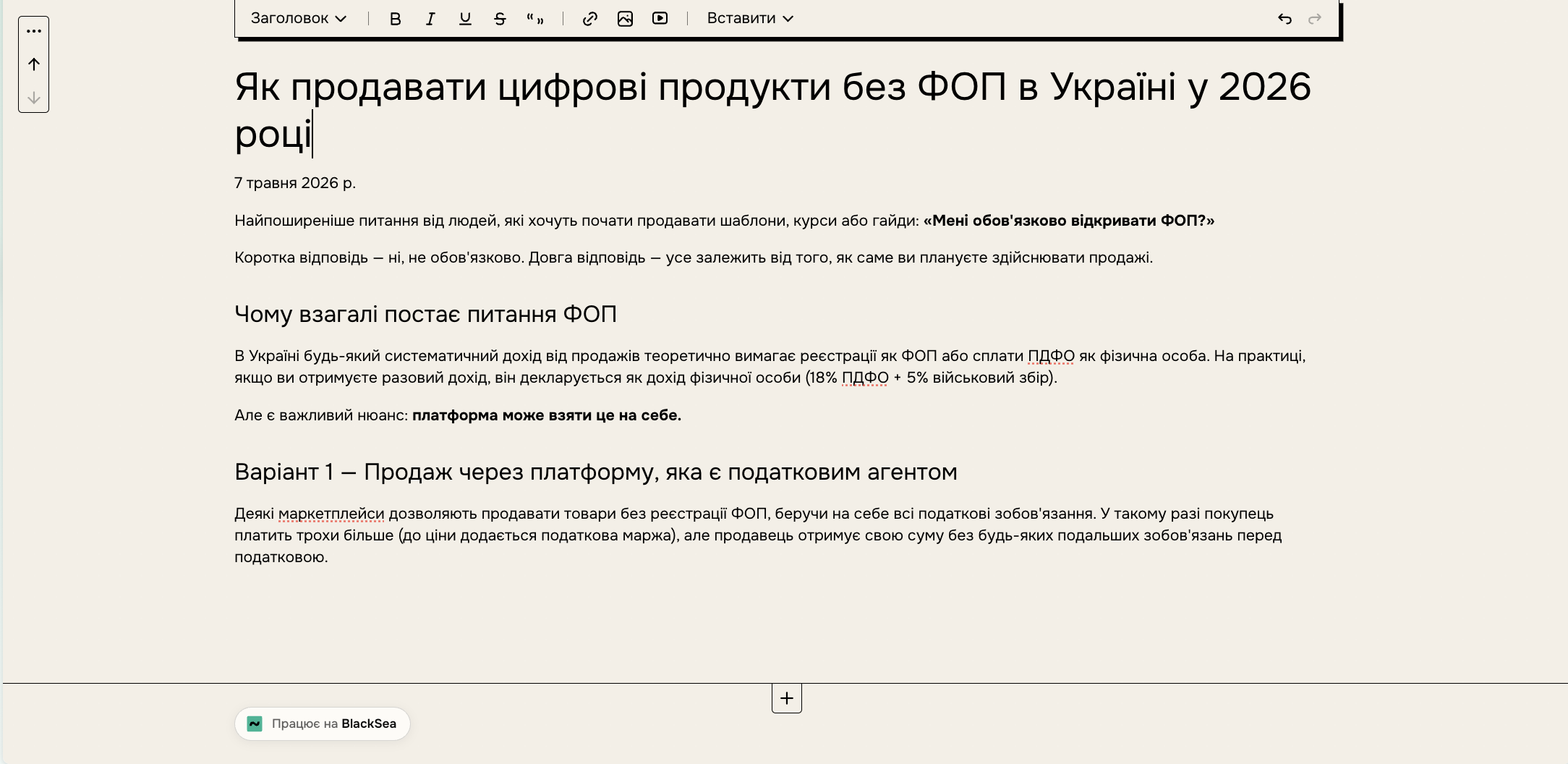
Add extra context before a section, or introduce a page, with rich-text blocks. The formatting toolbar lets you add lists, code blocks, quotes, links, buttons, and much more!
Add sections to product pages
Just like on your profile, you can add sections — such as products, posts, subscribe, and text blocks — to your product pages too!