Help

Categories
Discount codes
In this article:
- Create a discount code
- Allow customers to enter discount codes
- Discounts for memberships
- Discount code customization
- Edit discount codes
- Frequently asked questions
Create a discount code
Once you've created a product, you can create discount codes to offer discounts to your customers.
Creating discount codes is easy — just go to the "Discounts" tab on the checkout page.
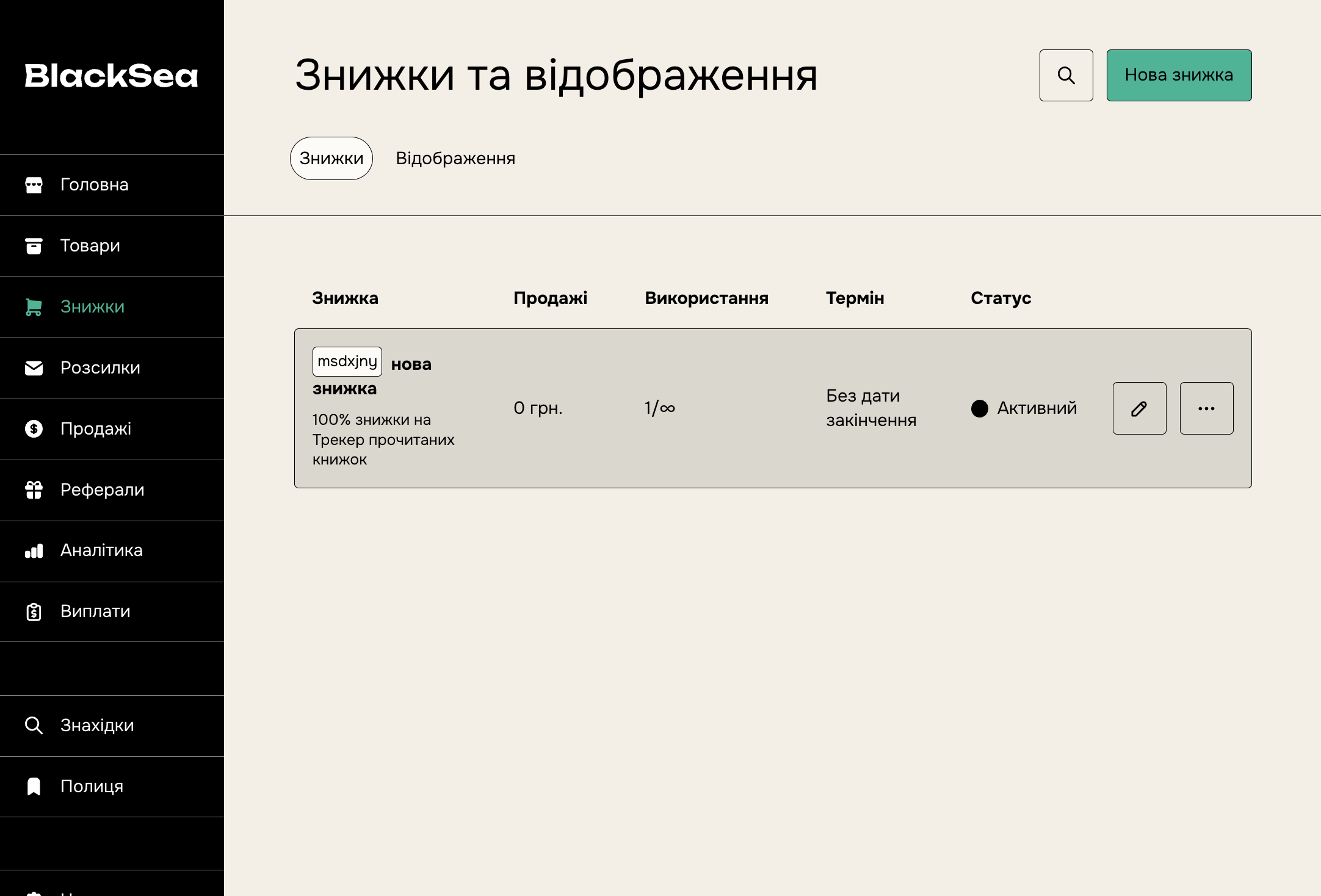
Click "New discount" to get started. We automatically generate a discount code for you, but you can replace it with your own code.
Note: The code can only contain numbers and letters.
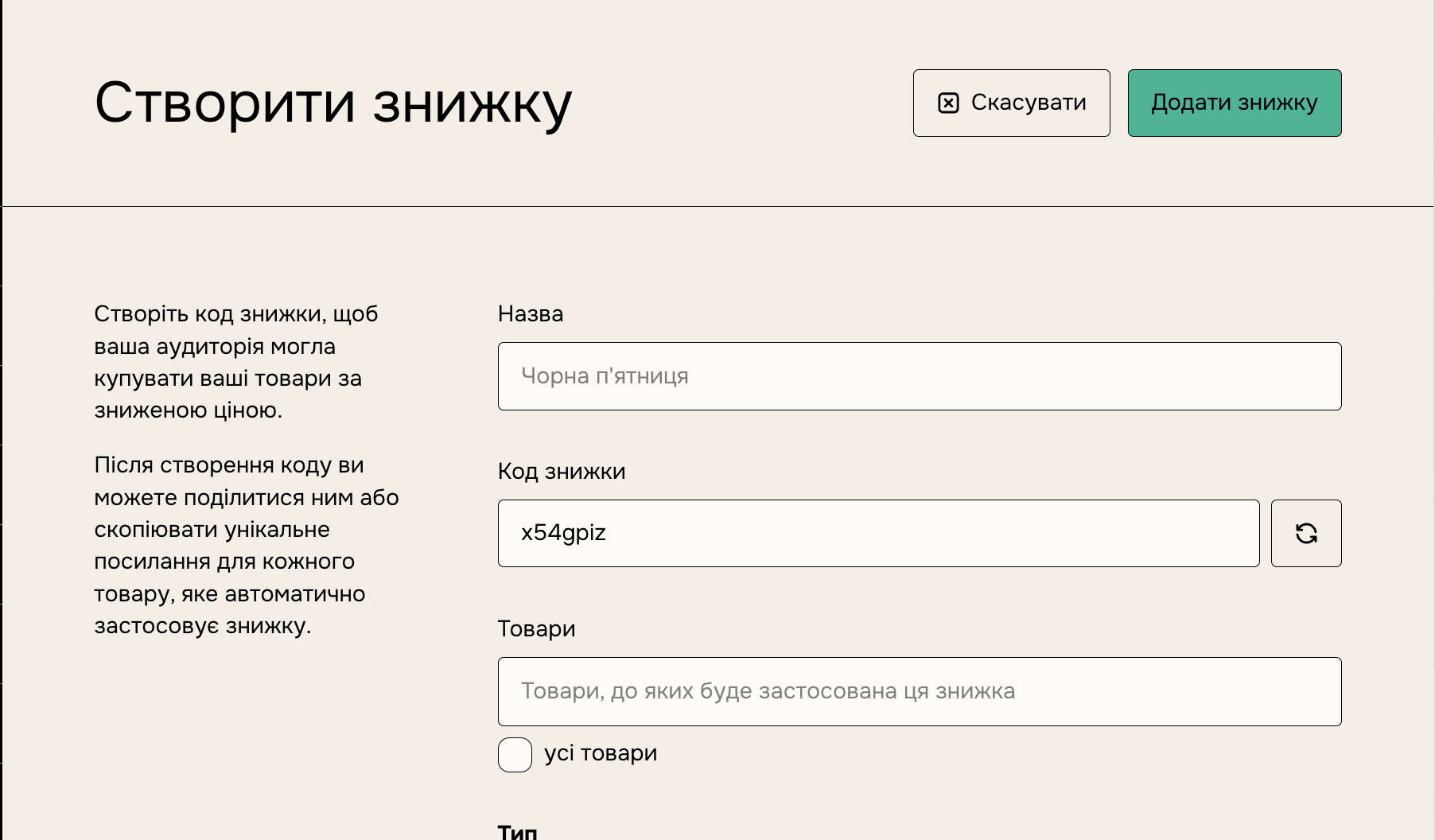
Select the product(s) you want to apply this discount code to, or check "All products" if you want it to apply to all your products.
Enter the discount code and the amount or percentage off the full price.
Allow customers to enter discount codes
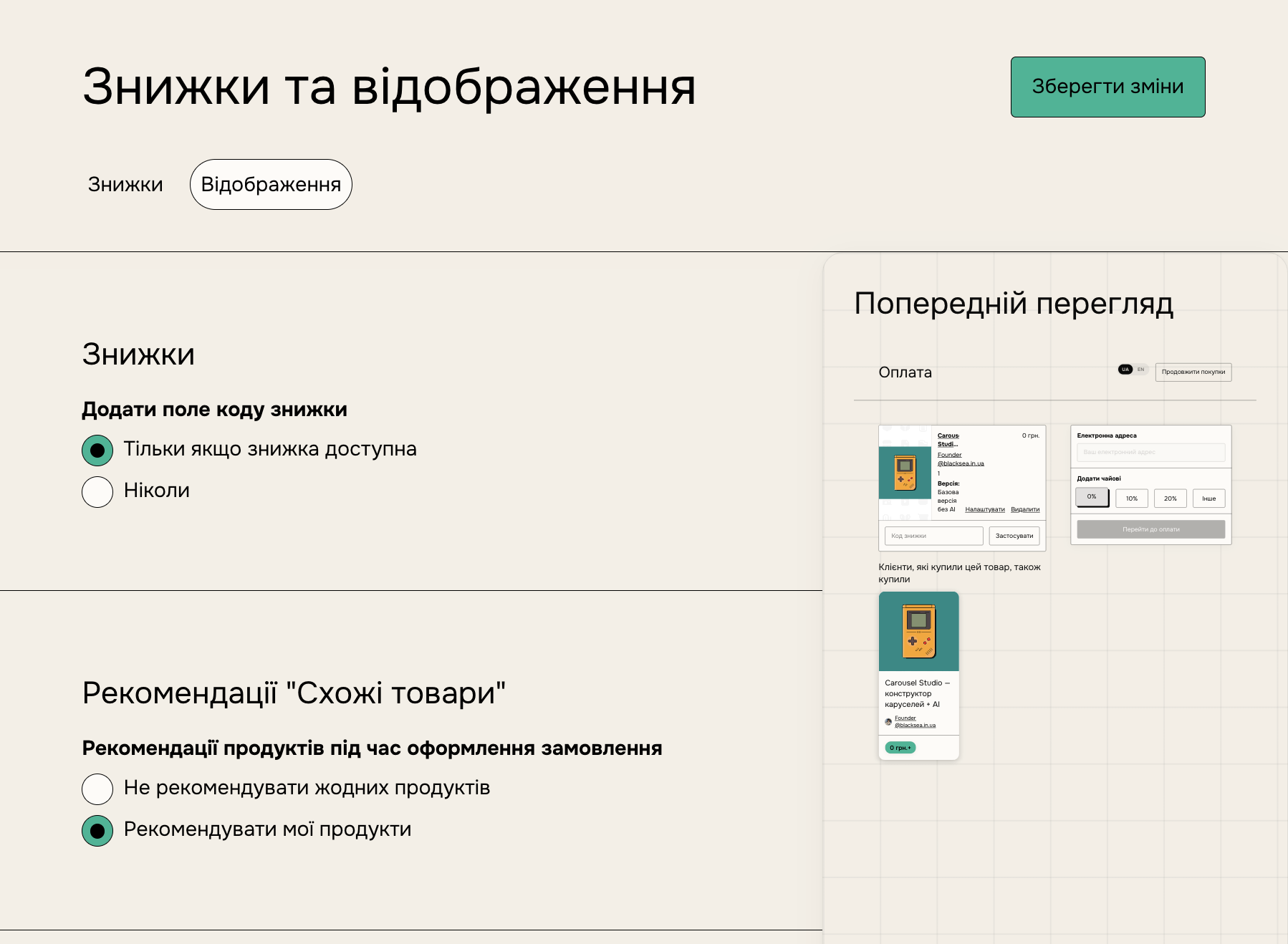
To show the discount code input field on the checkout page, toggle "Only if a discount is available" on the Checkout form tab.
Discounts for memberships
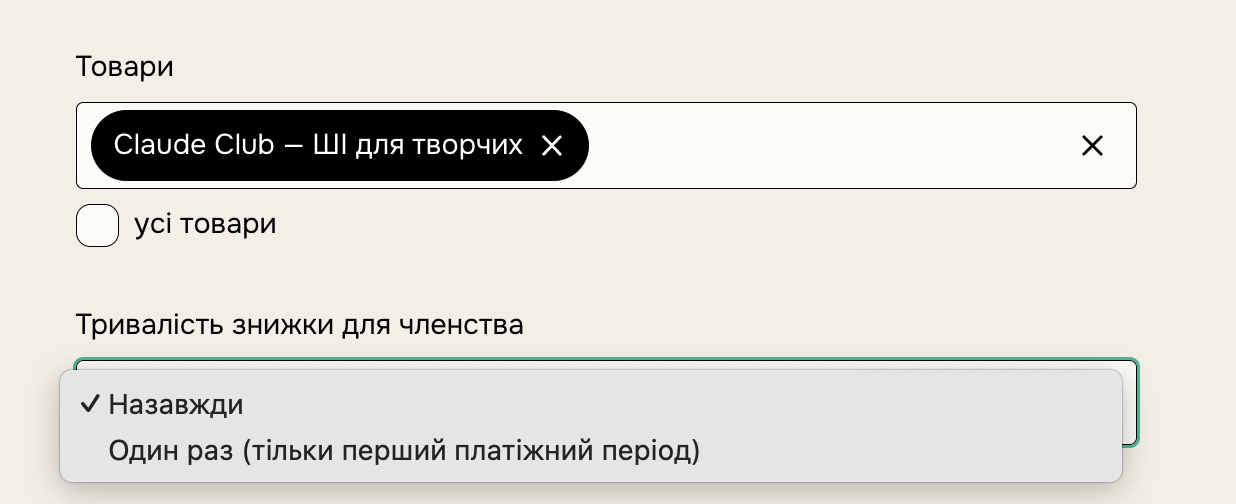
If your discount code applies to a membership, you can choose whether it's valid for all recurring payments or only for the first billing period. A code intended for the first billing period only can help you increase recurring sales without being locked into a reduced price for the entire membership term.
Discount code customization
You can customize a discount code by setting the following options:
-
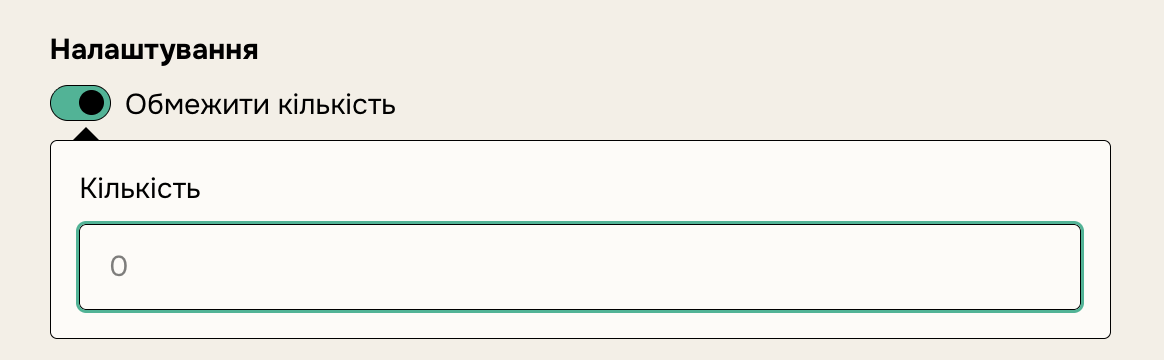
Limit quantity
Limit the total number of times this code can be used by setting "Limit quantity". By default, a code can be used an unlimited number of times. This limits the total usage of the code, not the number of uses by a particular customer.
-
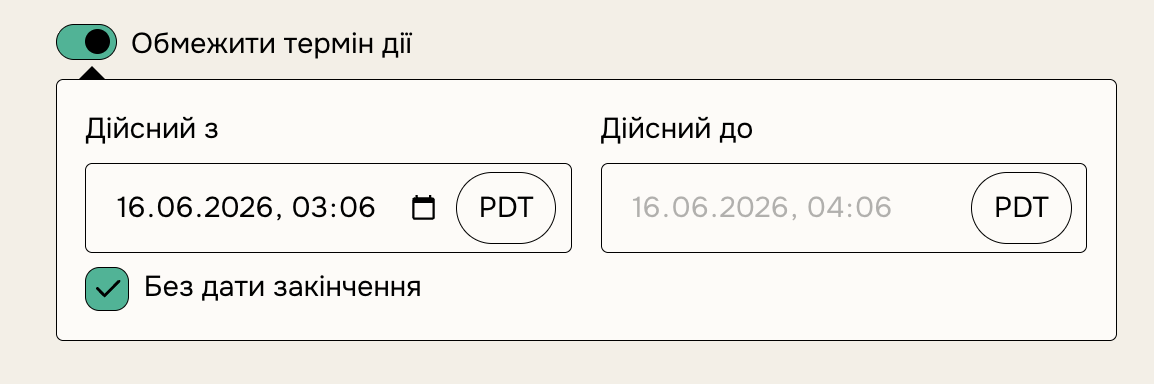
Limit validity period
Schedule discount codes in advance by setting a validity period. This lets you create discount codes ahead of time, and also expire them without losing access to revenue or usage statistics. This can be useful for time-limited offers or promotions.
-
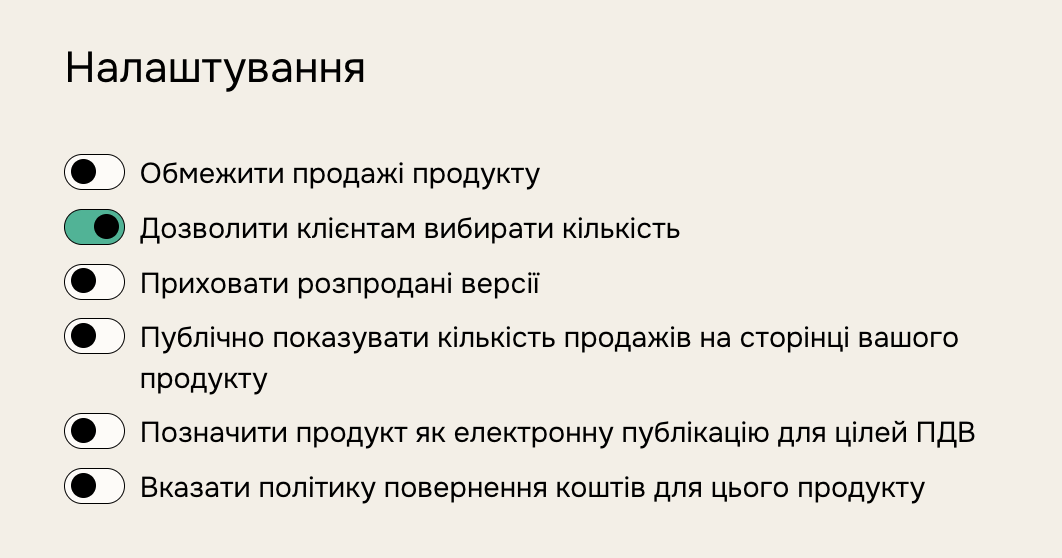
Set a minimum quantity
Encourage your customers to buy multiple units of a product by setting a minimum quantity. These codes will only apply if the customer buys a quantity greater than or equal to the set minimum.
Note: For your customers to be able to use this code, the "Allow customers to choose quantity" setting must be enabled for the target product(s). You can do this on the product edit page.
Edit discount codes
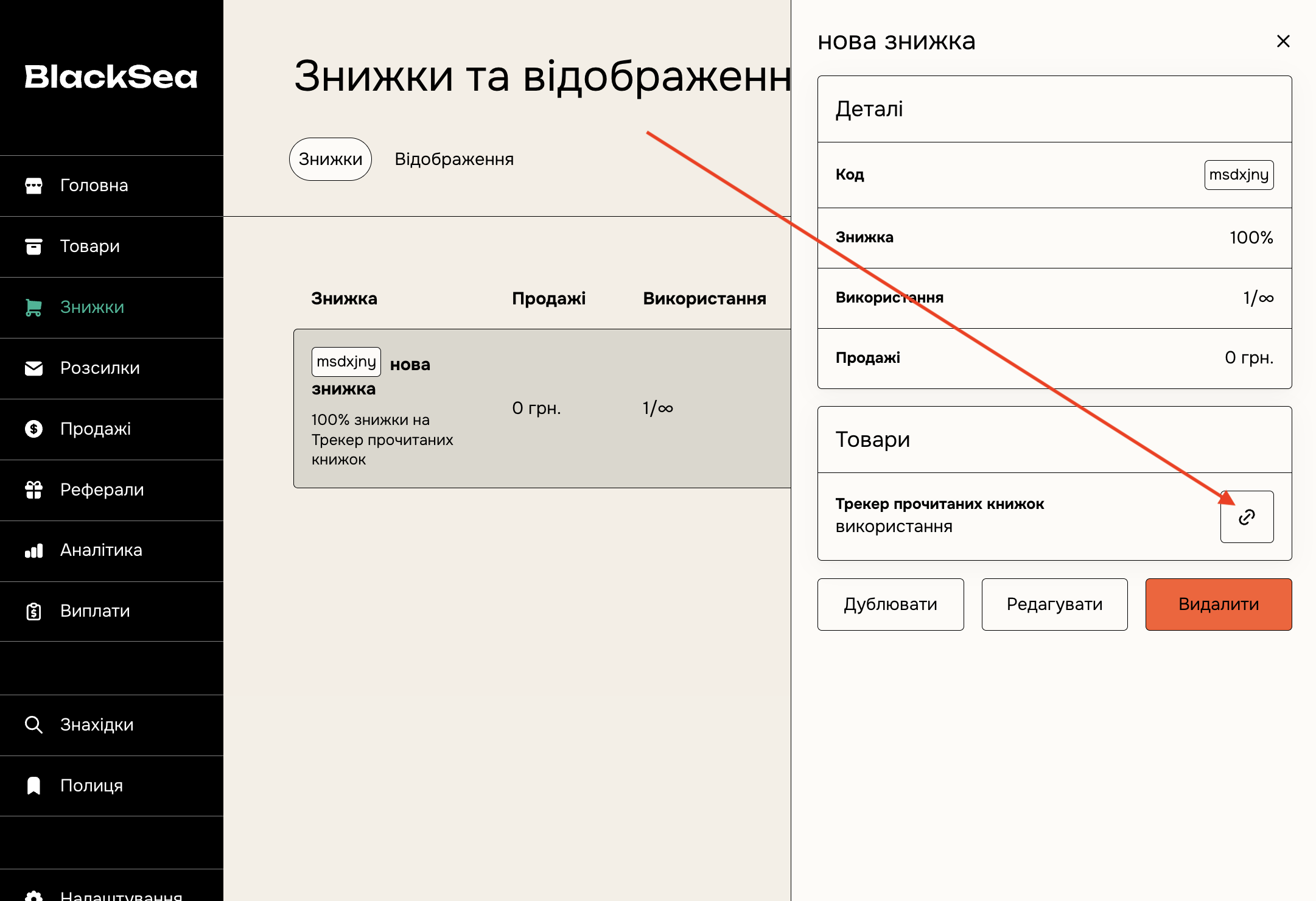
Click any discount you want to edit and a side panel will open.
In the "Products" section, click the "Share" button to copy a link to a specific product. This copies the URL of your BlackSea product with "/{your_discount_code}" added.
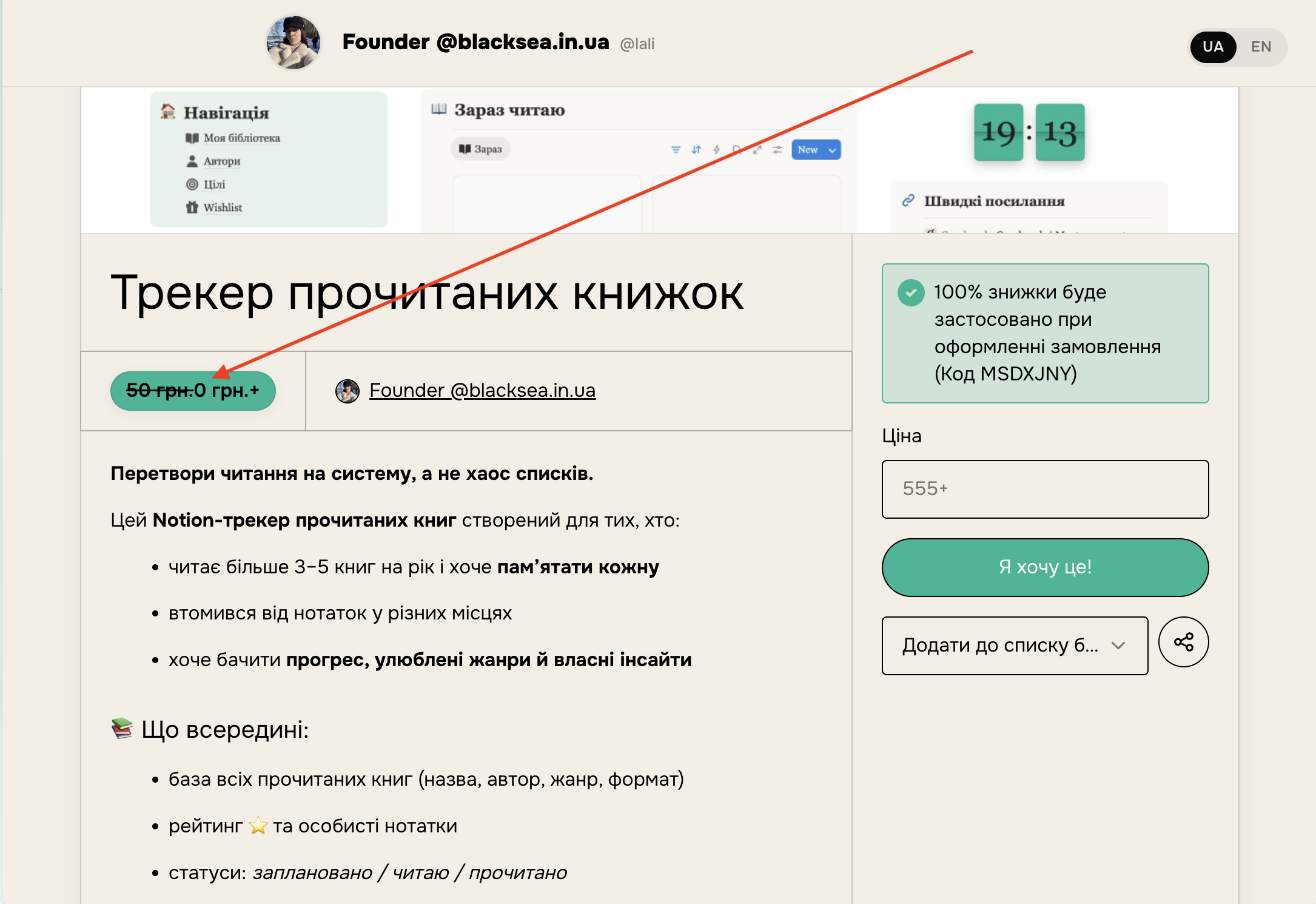
After clicking the discount link, you'll see the original price crossed out, with the discounted price shown next to it. This only appears if the discount code is applied via a link to a specific product. Currently this is the only way to show crossed-out prices.
Frequently asked questions
Q: How do I embed a discount code in my product's URL?
Add it to the end of the URL! For example: https://username.blacksea.in.ua/{YourProductID} becomes https://username.blacksea.in.ua/{YourProductID}/{YourDiscountCode}
Q: Can I embed a discount code in my custom domain?
Yes! Just like on the BlackSea domain, you'll need to add the coupon code to the end of your custom URL: https:// {YourCustomDomain}/{YourProductID}/{YourDiscountCode}
Q: Can discount codes be stacked on top of each other?
Only one code can be used per product.
Q: Can a discount code be added to an affiliate link?
You can combine an affiliate link with a discount code:
https://{Your_Username}.blacksea.in.ua/l/{YourProductID}/{YourDiscountCode}?affiliate_id={Affiliate_ID}
The affiliate ID can be found in the affiliate link, the number after /a/.