Help

Categories
Send customers to the payment form
Many BlackSea creators who use the Overlay or link to their product page from their own websites find it useful to have the BlackSea payment form open automatically, rather than the product description.
To link directly to the payment form of a product with a set price, just add ?wanted=true to the end of your product's URL.
For example, compare the experience when clicking: lali.blacksea.in.ua/l/nkn versus lali.blacksea.in.ua/l/nkn?wanted=true.
If you use the Overlay feature and have several products listed on your website, you will also need to use the data-blacksea-single-product="true" attribute so that ?wanted=true works correctly. Here's an example of what that looks like.
Now things will go much faster!
You can learn more about using URL parameters in this article, but here are a few quick tips while you're here:
Versions and tiers
When you create a product with versions, you'll see "Share" buttons next to each option. You can click one to copy the URL, and then add ?wanted=true to the end when you share it.
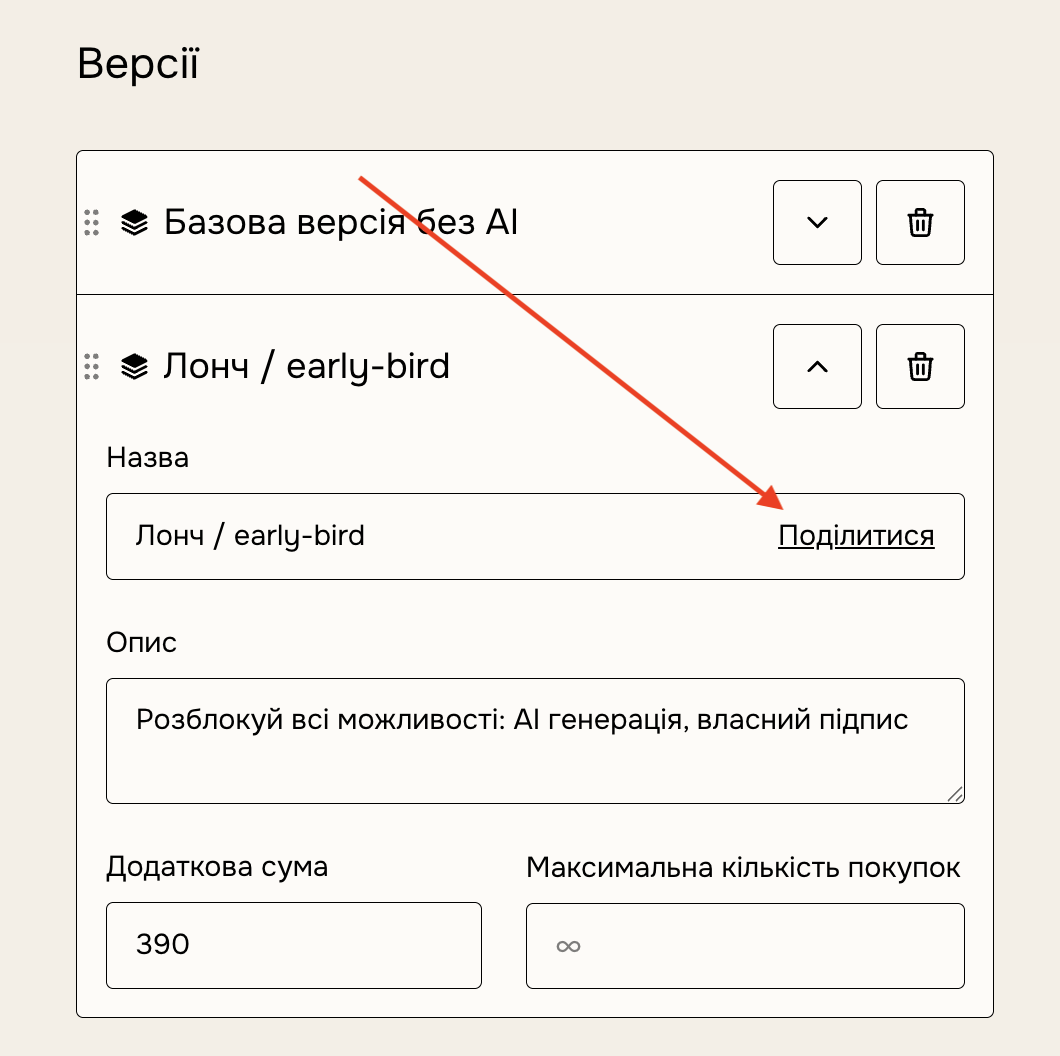
For example, for this product URL: lali.blacksea.in.ua/l/bb
I can link to the direct product URL for a specific tier (note the changes in bold): lali.blacksea.in.ua/l/bb?tier=Базова%20версія%20без%20AI
And the payment form, with that specific tier selected: lali.blacksea.in.ua/l/bb?tier=Базова%20версія%20без%20AI&wanted=true
Note: When using multiple URL parameters, you'll need to separate them with an ampersand '&', not another '?'. See the example above again.
Different payment frequencies
If you sell a membership product and want to direct a customer to a specific recurring payment rate, you first need to add that rate to the URL.
So, for this product, the default rate is "Monthly", as you can see:

To change this to yearly, you'd add ?yearly=true to the URL, and then &wanted=true, so we go from:
to...
lali.blacksea.in.ua/l/gu?yearly=true&wanted=true
If you'd like to add a specific tier in there, you'd do that first and then add the other rate. So if we update the example above, it becomes...
lali.blacksea.in.ua/l/gu?tier=Вищий%20рівень&yearly=true&wanted=true
You can use the following four frequency parameters: "monthly", "quarterly", "biannually", or "yearly".
Got it? It seems a little scary at first, but once you get the hang of it, it's very simple!
"Pay what you want" products
Note that this feature won't work quite as smoothly with "Pay what you want" products — that is, products with a "+" in the price. This is because customers have to confirm the price they want to pay before they're sent to the payment form.
To send people to the payment form on a PWYW product, you'll have to set a price in the URL on behalf of your customers.
You do this by first adding ?price=[price], and then adding &wanted=true. You're essentially telling the customer's browser to first enter the price in the price field, and then click the "Pay" button.
For example,
lali.blacksea.in.ua/l/nkn is a "Pay what you want" product. If I wanted to send customers directly to the purchase form, paying 0 UAH, I would do this: