Help

Categories
Adding a product
In this article:
- Choose a product type
- Set a price
- Describe your product
- Provide additional product info
- Integrations
- Add content to your product
- Versions
- Publish your product
Choose a product type
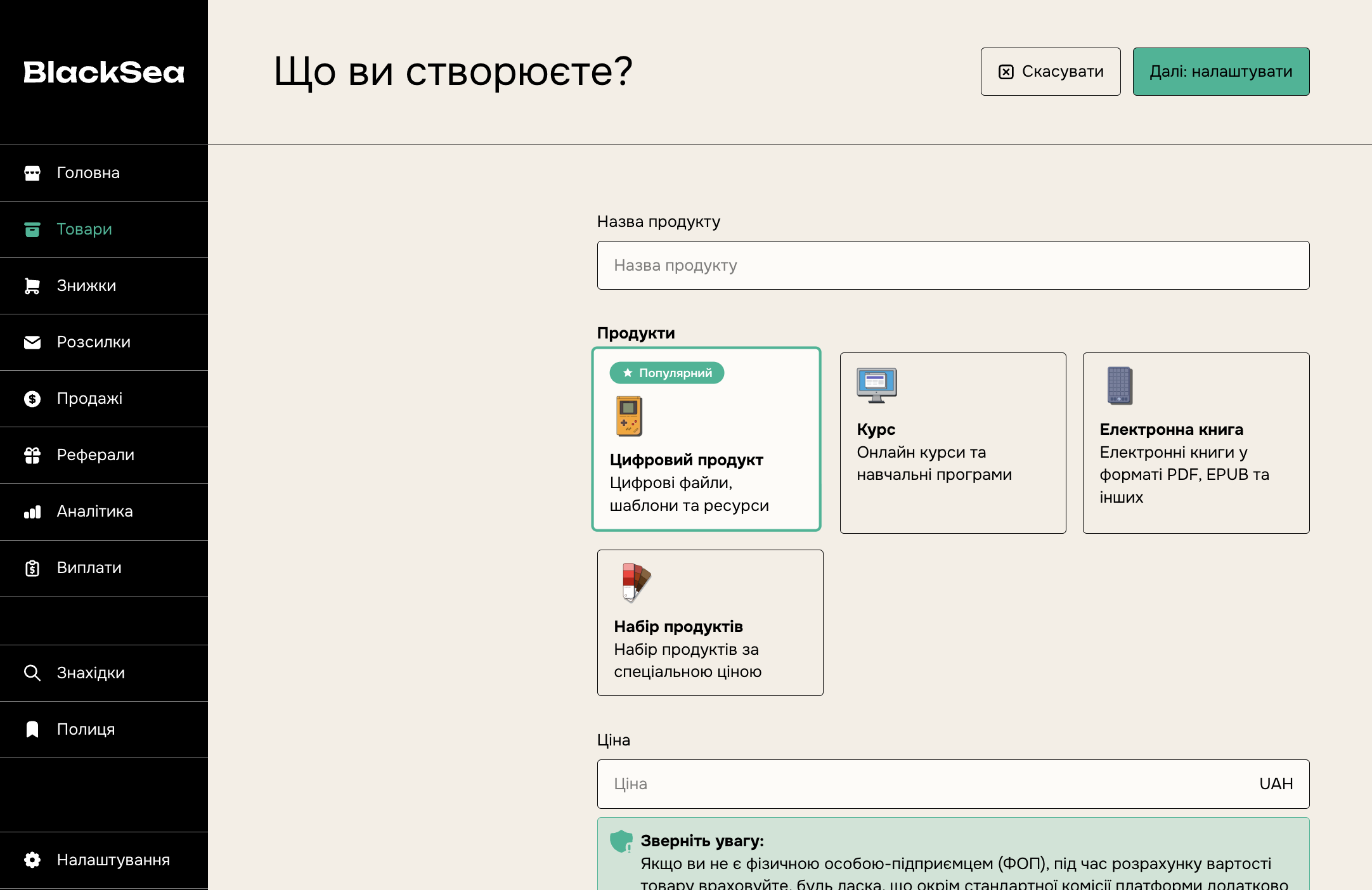
Click "New product" on the products dashboard and choose a product type.
Digital product, Course or learning guide, and E-book type products let you sell products with a one-time payment and digital content.
You can also sell memberships with recurring payments, or a bundle of several existing products.
Set a price
Products can be free or cost up to 225,000 UAH. You can also let customers pay what they want by adding a '+' to the product's minimum price, for example "50+ UAH".
Click the currency icon to choose from the available display currency options — this can't be changed after the product is created. Regardless of the display currency, note that all payments are processed in hryvnia.
Describe your product
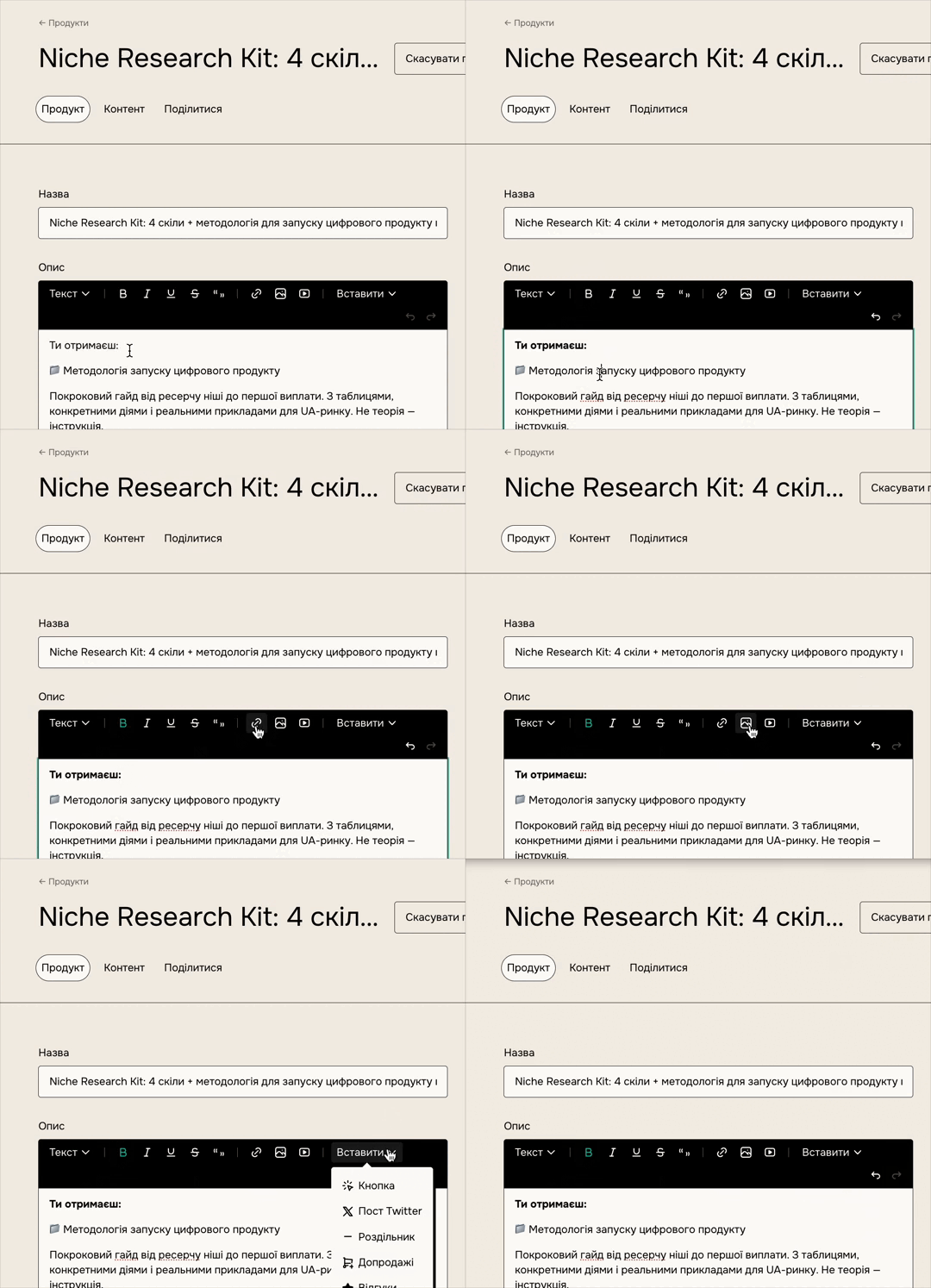
Describe your product and style it with built-in styles. You can even add images, quotes, code blocks, or embed videos and even media players!
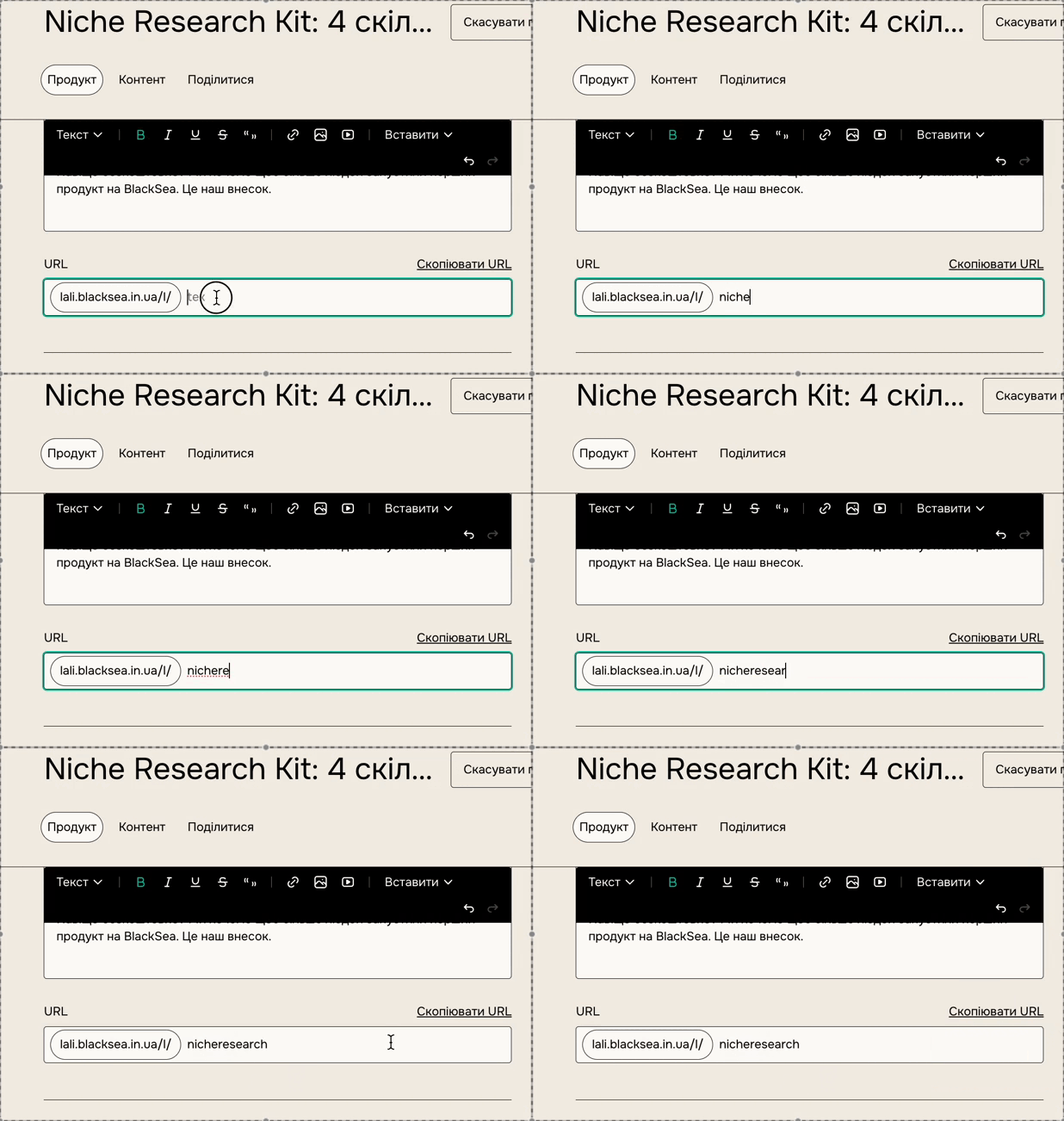
We create a unique URL for each product by default. If you want a more memorable URL for your customers, you can enter it here:
Read this article if you need help setting up a cover or thumbnail for your product.
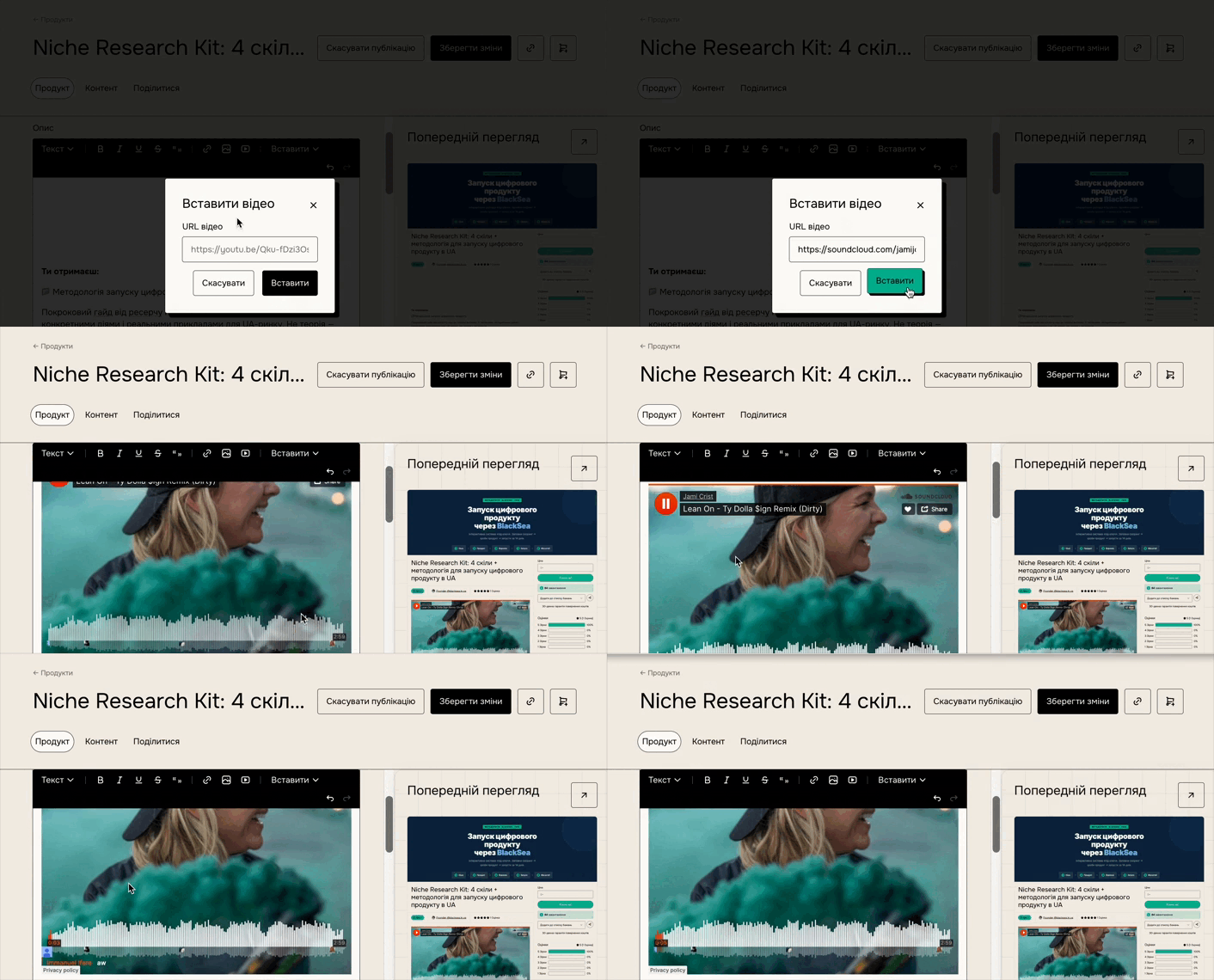
To embed a music player (for example, Soundcloud) in your product description, copy the share URL for your audio:
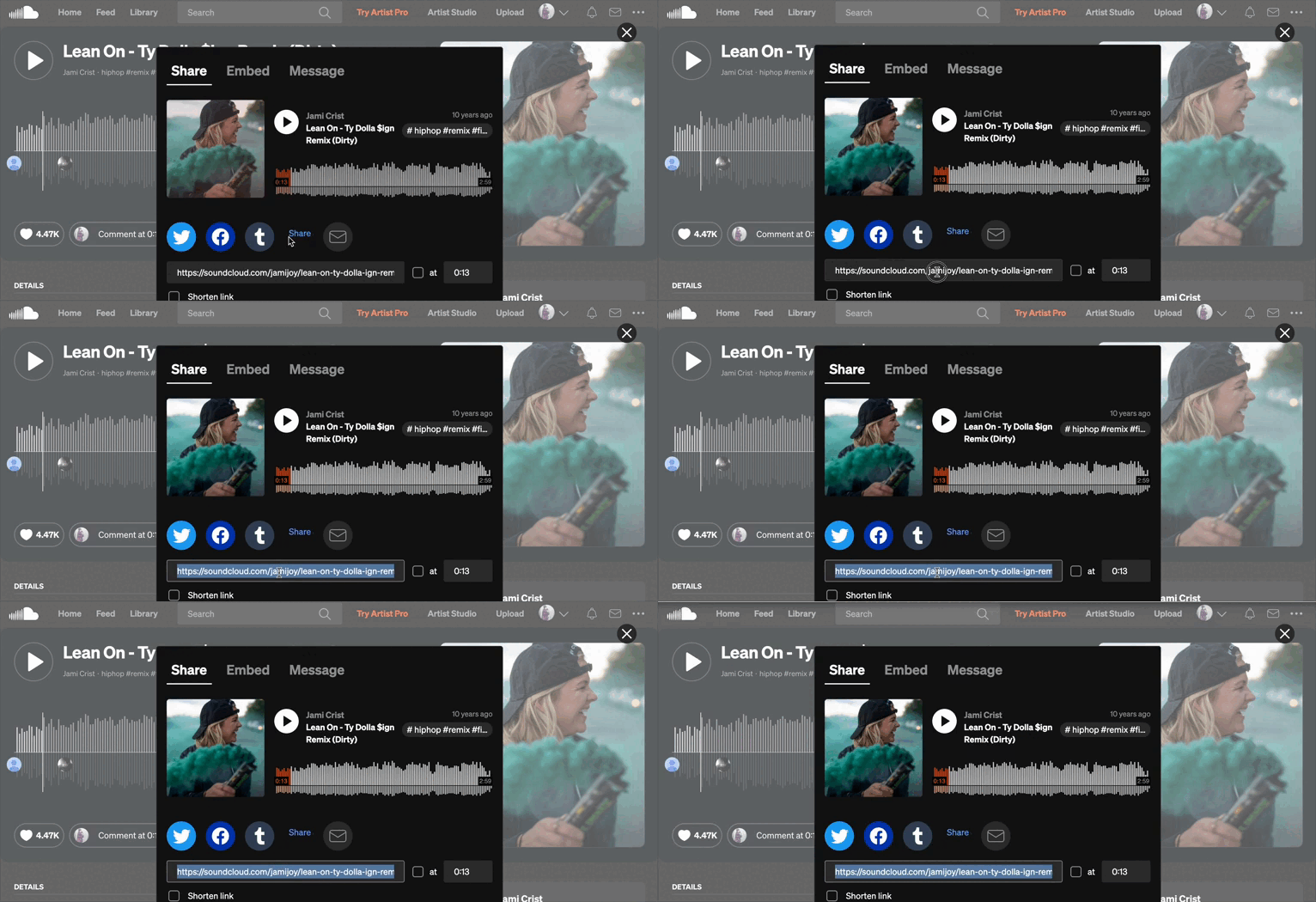
Then go to your product's edit page, click the video embed icon, and paste the URL.
Provide additional product info
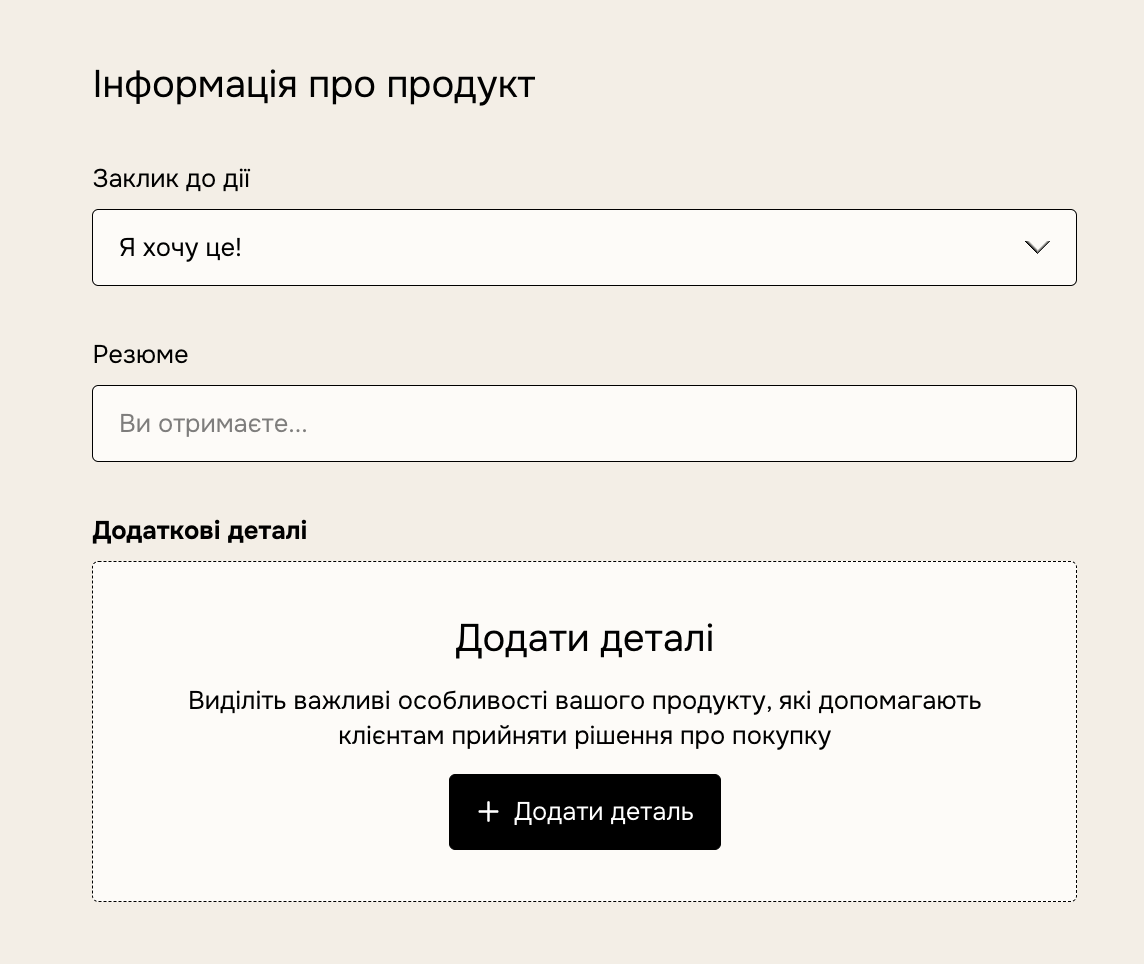
You can choose the "Call to action" you like best, but it's currently not possible to set a custom call to action.
You can also add a summary and additional details for the product, which will be shown under the call to action on the product page.
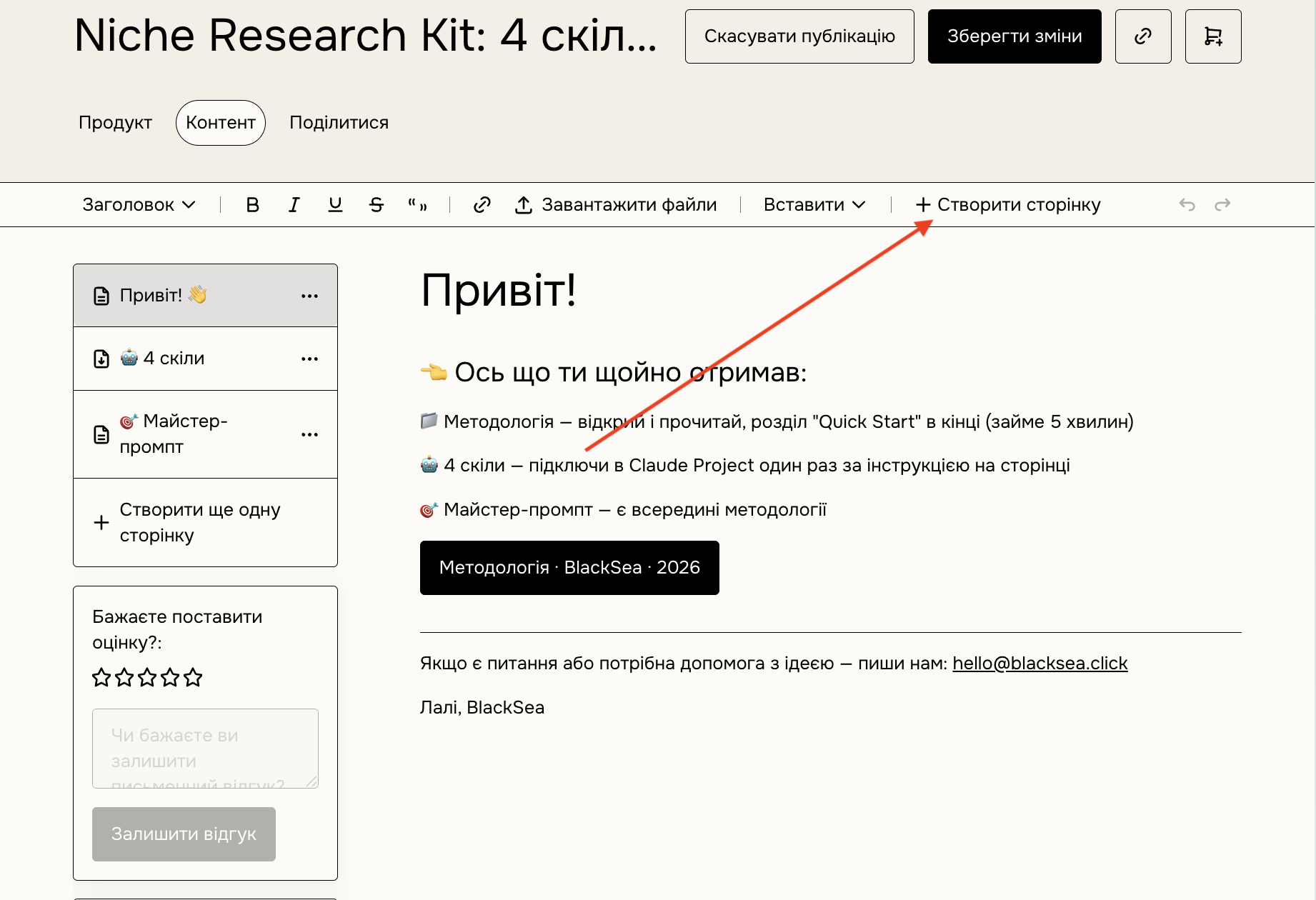
Go to your product's "Content" tab and start typing!
You can add files, stamped PDFs, code blocks, embed videos with custom thumbnails (download or streaming only), and much more — right from the editor!
Pages
Pages let you structure and organize your content into easily digestible categories. You can create pages for different types of content; for example: getting-started instructions, downloads, audio/video, terms/refund policy, and so on.
To create a page:
- Click the "Create page" icon on the editor toolbar
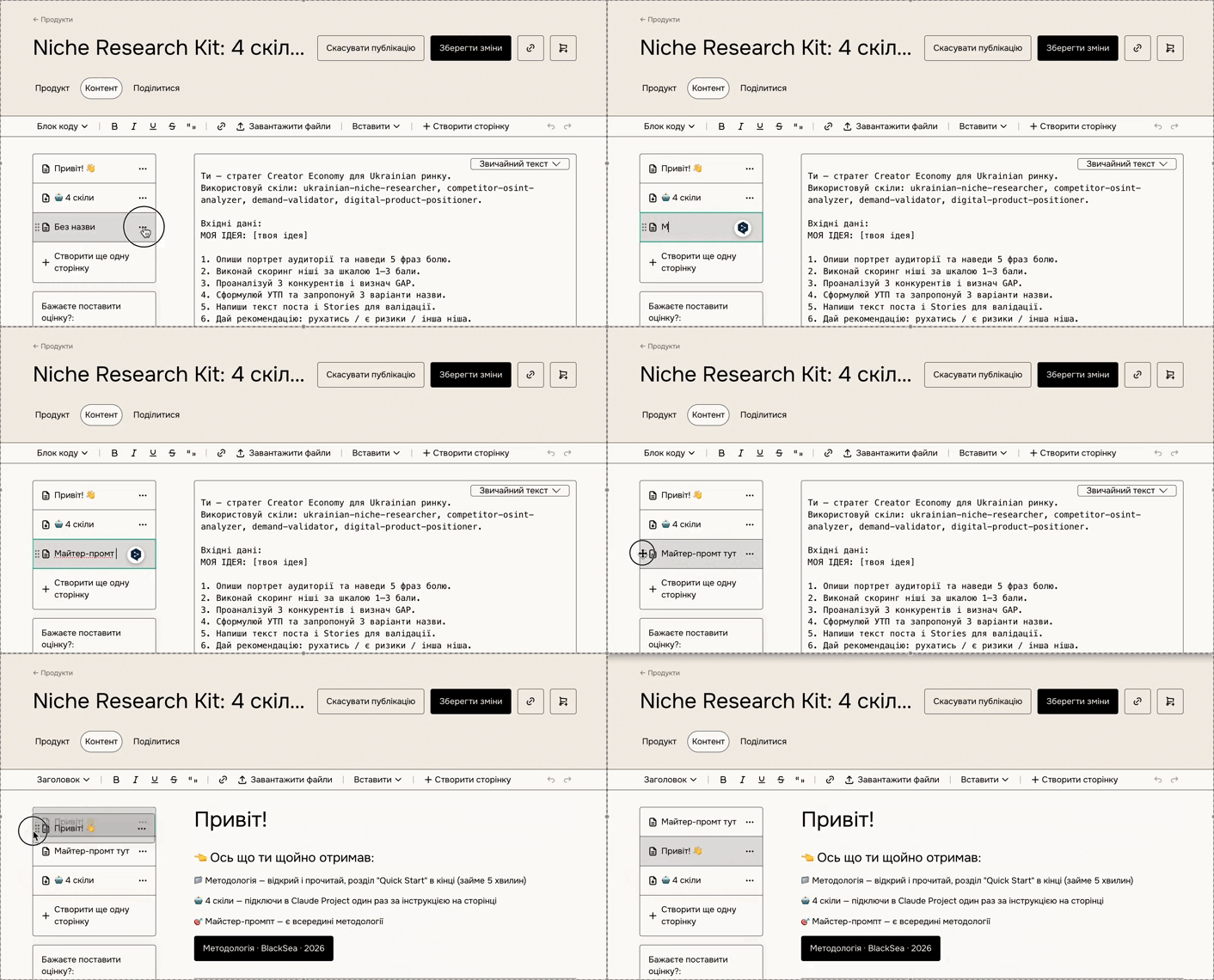
- Give your page a name in the left column
- Click "Add another page" to repeat the process
You can delete or rename pages by clicking the three dots next to the page name, or reorder them by dragging the six-dot icon on the left.
It's always a good idea to save your changes periodically.
Embed emails into your product
If there are emails you'd like all customers to be able to view, you can embed them directly on the "Content" page.
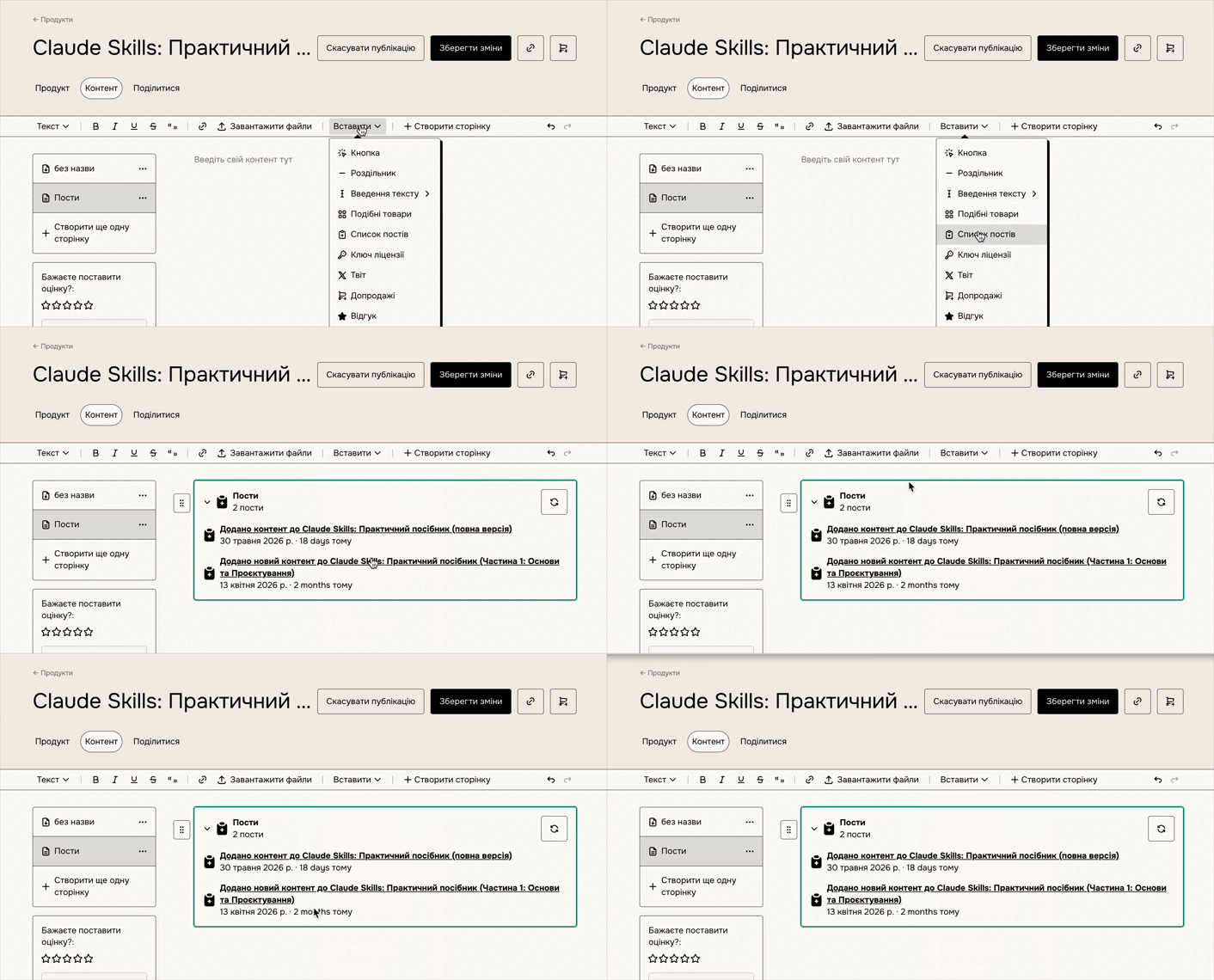
Track clicks on your URLs
If you control any URLs mentioned in your content, you can track/listen for clicks on them using the __sale_info__ query parameter.
Add __sale_info__ to your links to capture sale parameters such as sale_id, product_id, and product_permalink on the corresponding download page.
For example, a link like https://example.com?__sale_info__ will be replaced with https://example.com?sale_id=PURCHASE_ID_HERE&product_id=PRODUCT_ID_HERE&product_permalink=PERMALINK_HERE on the download page.
Versions
Versions can help you sell different sets of content, software access tiers, or add-on services within a single product at different prices. Read this article to learn all about setting up versions.
Publish your product
You can customize your product's checkout flow and see it from your customer's point of view with a test purchase.
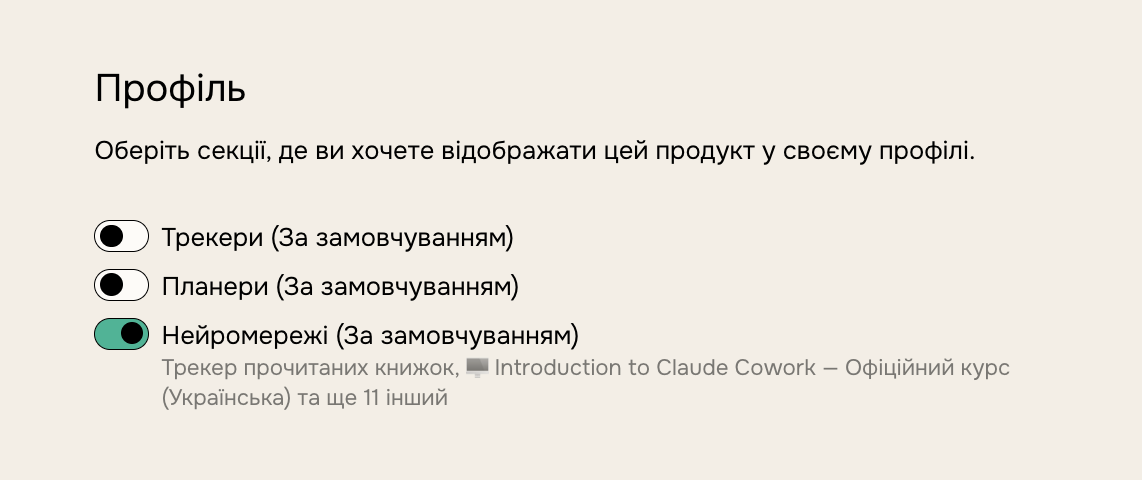
Once you're happy with everything, click "Publish" at the top of the page and add it to a profile section so customers can access it from your profile page.
You can also add profile sections such as posts, a subscribe form, rich text, and even other products to your product page. Check out this article to learn more about profile sections.