Help

Categories
Facebook domain verification
Following the release of iOS 14.5, Facebook introduced new ad measurement protocols. Under these rules, one of an advertiser's key actions is to verify your domain in Facebook Business Manager.
As Meta notes, domain verification must be done at the eTLD+1 level. For example, for www.jasper.com, books.jasper.com, and jasper.com, the eTLD+1 domain is jasper.com.
You can point Facebook's ad tools directly to your BlackSea profile page at {username}.blacksea.in.ua! A custom domain is not required to enter the Facebook meta tag
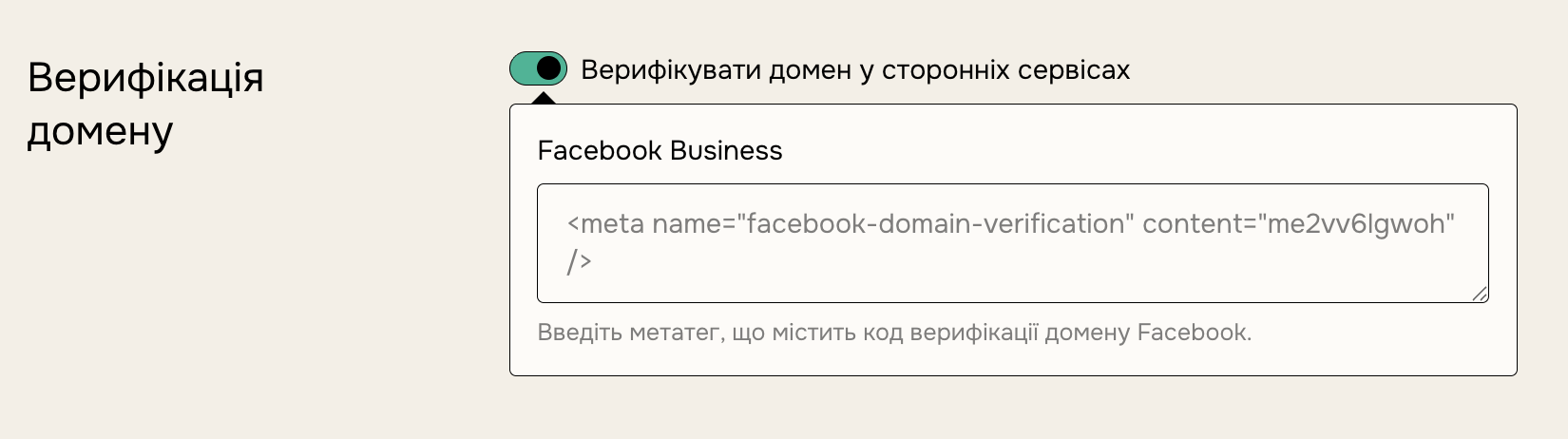
How to verify your domain
- Go to your third-party analytics settings.
- Turn on the "Verify domain with third-party services" option.
-
Copy the meta tag from your FB Business Manager and paste it into the field right below the toggle. FB's documentation on this is here.

- Click "Update settings" in the top-right of the settings page.
-
Check that the meta tag was added to your site: right-click on the home page, select "Inspect (Ctrl+Shift+I)", and find the meta tag on the "Elements" tab, as in the screenshot below.
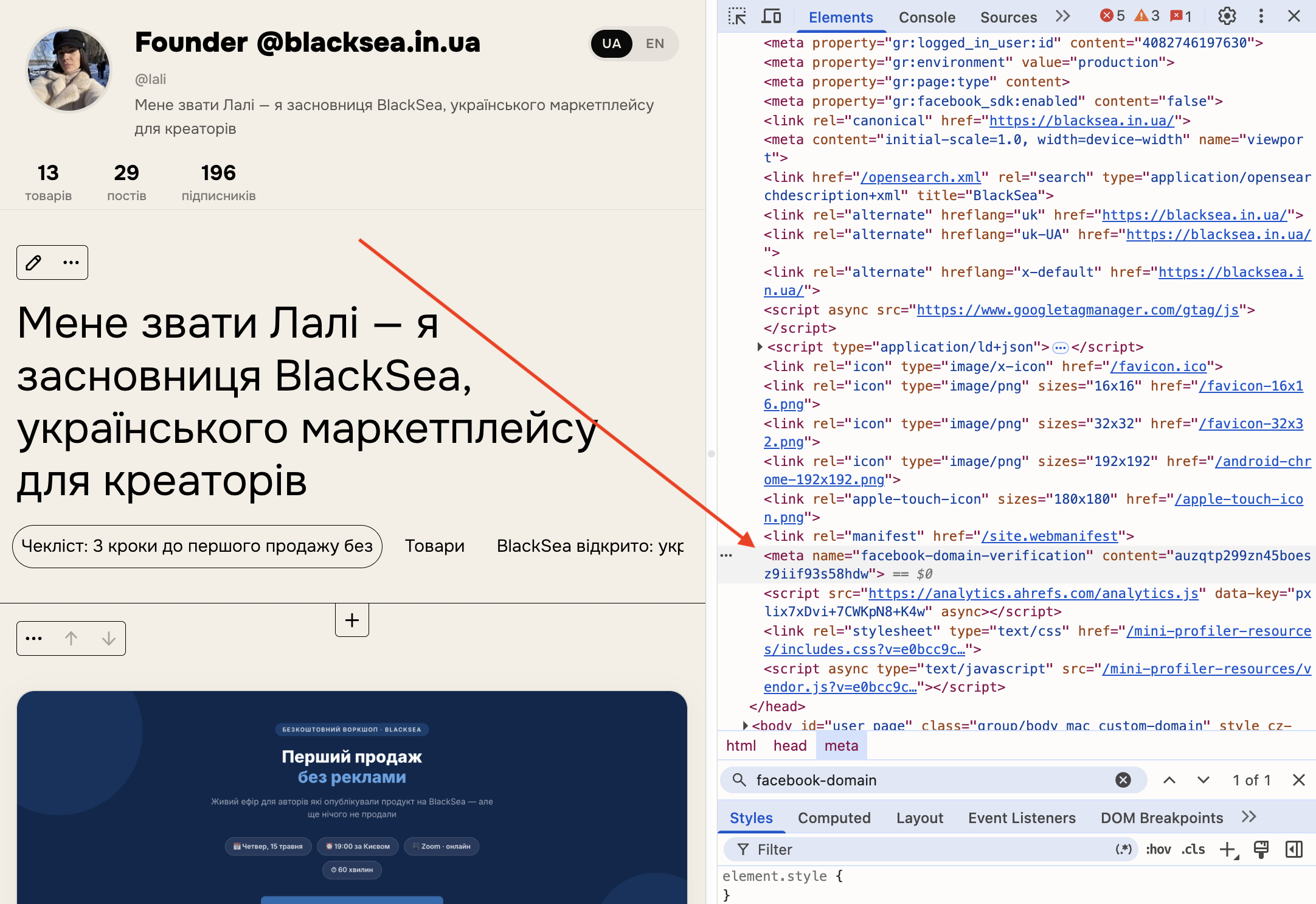

- Once you've confirmed the meta tag was added, go back to FB Business Manager and click the "Verify" button at the bottom of the meta-tag verification tab for the selected domain.
- Leave the meta tag on the domain's home page — it may be checked periodically to confirm verification.
Done! Now you can direct ads either to your profile or to individual products.